Use Horizon to create an application credential on cloud environment
Cloud parameters for authentication and later OpenStack CLI access are stored in an OpenStack environment file, often called an RC file. When you use application credentials, Horizon can also provide a clouds.yaml file.
This article explains how to create an application credential in Horizon, download the generated access files, and use them to authenticate with the OpenStack CLI.
What We Are Going To Cover
How to create an application credential in Horizon
How to download the generated openrc.sh file
How to use the openrc.sh file for OpenStack CLI access
How to download and use the clouds.yaml file
How to switch between regions by using clouds.yaml
How to test the connection
How to resolve common errors
What the application credential fields mean
Prerequisites
No. 1 Account
You need a cloud environment hosting account with access to the Horizon interface:
https://horizon.cloudferro.com/
Choose ECIS and FRA1-3 as the region.
No. 2 OpenStackClient installed and available
RC file sets up the values of local environment variables and is a Bash file, ending in .sh. Here is how to run it on various operating systems:
- Install GitBash on Windows
Run .sh files and install OpenStackClient from a GitBash window under Windows: How to install OpenStackClient GitBash for Windows on cloud environment.
- Install and run WSL (Linux under Windows)
Run .sh files and install OpenStackClient from a Ubuntu window under Windows. How to install OpenStackClient on Windows using Windows Subsystem for Linux on cloud environment OpenStack Hosting.
- Install OpenStackClient on Linux
How to install OpenStackClient for Linux on cloud environment.
Create a new application credential
On regions R1 and R2, the usual Horizon login credentials are not used directly as OpenStack CLI credentials. Instead, OpenStack provides application credentials. An application credential gives command-line tools and automation scripts their own authentication data without exposing your interactive login credentials.
In Horizon, use the following command chain:
Identity -> Application Credentials -> + Create Application Credential.
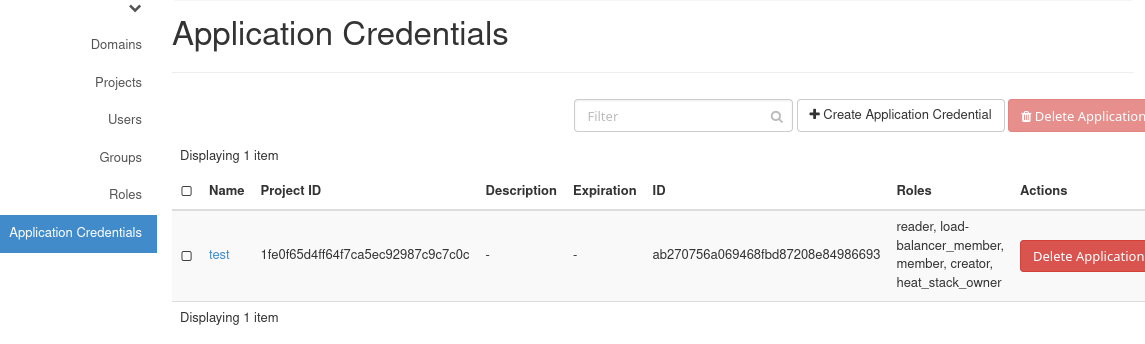
Opening the Application Credentials page in Horizon
Then enter the required data in the Create Application Credential form.
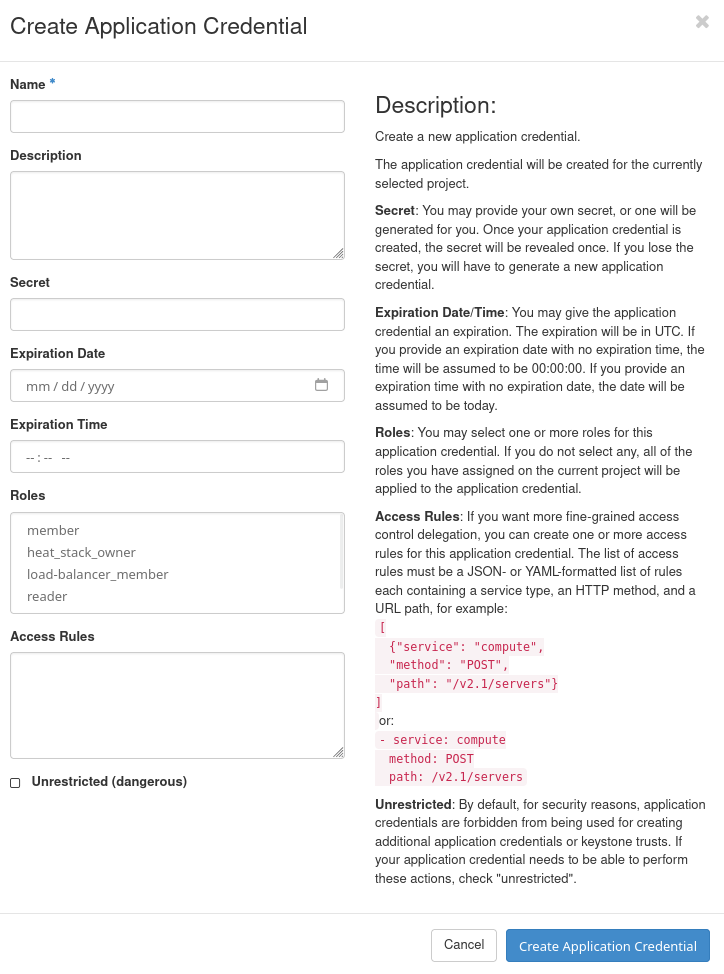
Creating a new application credential
Note
The options in this form are described at the end of this article in more detail.
The fastest option is to enter only the credential name in the Name field. If you do not change the other fields, Horizon uses their default values.
After entering the name, click Create Application Credential.
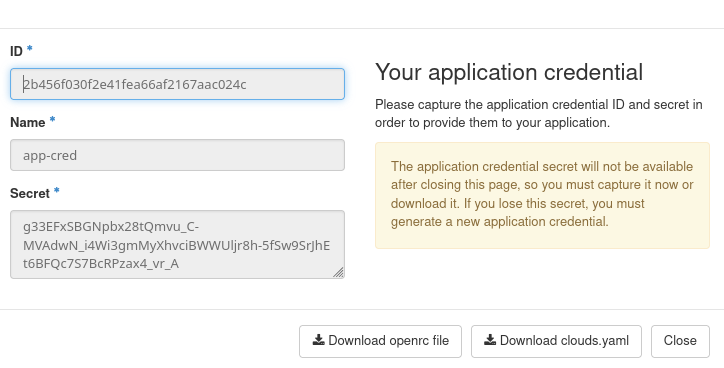
Application credential details after creation
Save the values shown in the following fields:
ID
Name
Secret
Warning
The application credential secret is shown only once. It will not be available after you close this page. Save it now or download one of the generated credential files. If you lose the secret, you must create a new application credential.
Download the openrc file
After the application credential is created, click Download openrc file.
Horizon downloads a shell file similar to this:
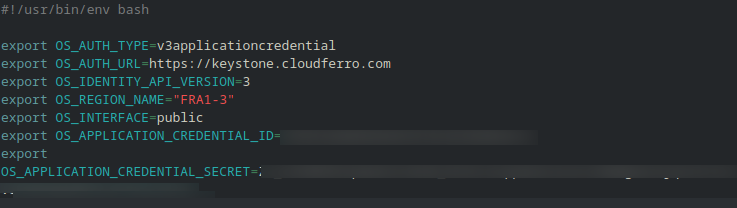
Downloaded application credential openrc file
This file is a reduced version of a standard OpenStack RC file. It already contains the application credential ID and secret in the correct places.
On Linux, you can activate it with source:
source ./app-cred-openrc.sh
Replace app-cred-openrc.sh with the actual file name downloaded from Horizon.
After the file is sourced, the required authentication variables are available in the current terminal session. You can then run OpenStack CLI commands against the selected region.
For example:
openstack token issue
If authentication works, the command returns token information.
You can also test access by listing projects, servers, networks, or images, depending on the permissions assigned to your account and application credential:
openstack server list
openstack network list
openstack image list
Download the clouds.yaml file
You can also download the clouds.yaml file from the same application credential page.
It looks similar to this:
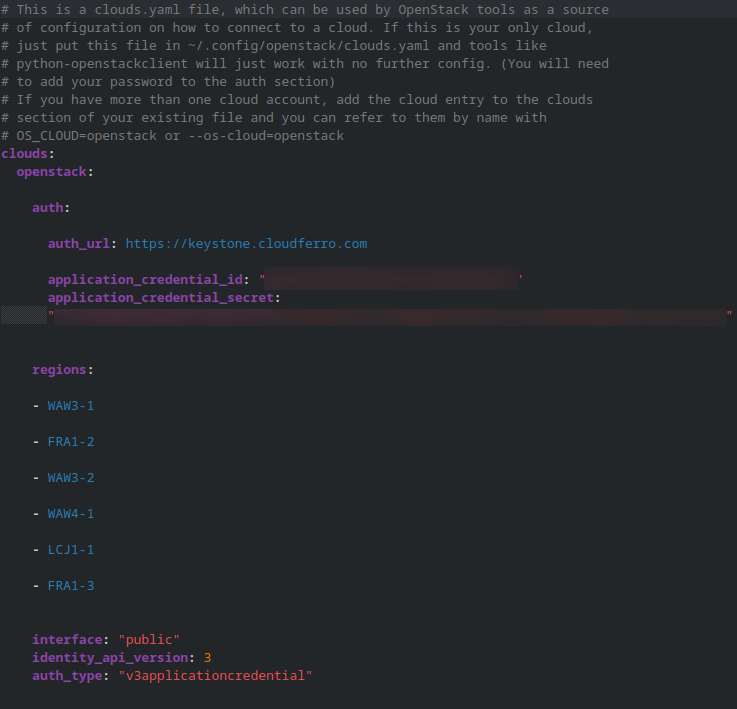
Downloaded clouds.yaml file
The clouds.yaml file contains the application credential ID and secret. Unlike an openrc.sh file, it can store multiple cloud or region definitions in one place.
This is useful when you want to switch between regions without repeatedly sourcing different shell files.
Where to place clouds.yaml
By default, the OpenStack CLI looks for clouds.yaml in this location:
~/.config/openstack/clouds.yaml
Create the directory if it does not already exist:
mkdir -p ~/.config/openstack
Then copy the downloaded file to that location:
cp ./clouds.yaml ~/.config/openstack/clouds.yaml
Replace ./clouds.yaml with the actual path to the downloaded file if needed.
Use clouds.yaml with OpenStack CLI
When clouds.yaml is in place, you can choose the cloud entry with the –os-cloud parameter.
For example:
openstack --os-cloud ecis-r1 token issue
You can also export the selected cloud once and then omit –os-cloud from later commands:
export OS_CLOUD=ecis-r1

openstack token issue
openstack server list
openstack network list
The value ecis-r1 is only an example. Use the actual cloud name defined in your downloaded clouds.yaml file.
Switch from one region to another by using clouds.yaml
A clouds.yaml file can contain more than one entry. Each entry can point to a different region while using the same application credential authentication method.
A simplified example may look like this:
clouds:
  ecis-r1:
    auth:
      auth_url: https://identity.api.r1.cloud.eumetsat.int/v3
      application_credential_id: 11111111111111111111111111111111
      application_credential_secret: "REPLACE_WITH_SECRET"
    region_name: ECIS-R1
    interface: public
    identity_api_version: 3
    auth_type: v3applicationcredential

  ecis-r2:
    auth:
      auth_url: https://identity.api.r2.cloud.eumetsat.int/v3
      application_credential_id: 11111111111111111111111111111111
      application_credential_secret: "REPLACE_WITH_SECRET"
    region_name: ECIS-R2
    interface: public
    identity_api_version: 3
    auth_type: v3applicationcredential
In this example, the file defines two OpenStack CLI targets:
ecis-r1
ecis-r2
To use the first region, run:
openstack --os-cloud ecis-r1 server list
To use the second region, run:
openstack --os-cloud ecis-r2 server list
You can also switch the active region for the current terminal session by changing OS_CLOUD:
export OS_CLOUD=ecis-r1
openstack server list

export OS_CLOUD=ecis-r2
openstack server list
This method is convenient when you frequently work with more than one region.
Note
Use the exact auth_url, region_name, application credential ID, and application credential secret from the files downloaded from Horizon. The values shown above are examples.
Test the connection
After activating either the openrc.sh file or the clouds.yaml entry, test authentication first:
openstack token issue
If the token command works, test access to common OpenStack resources:
openstack project list
openstack server list
openstack network list
openstack image list
The exact results depend on your assigned roles and the project selected for the application credential.
Use application credentials in scripts
Application credentials are suitable for scripts and automation because they avoid using your interactive user login data.
For example, after setting OS_CLOUD, a script can call OpenStack CLI commands directly:
#!/usr/bin/env bash

set -euo pipefail

export OS_CLOUD=ecis-r1

echo "Testing OpenStack authentication..."
openstack token issue

echo "Listing servers..."
openstack server list
You can also pass the cloud entry directly:
#!/usr/bin/env bash

set -euo pipefail

openstack --os-cloud ecis-r1 token issue
openstack --os-cloud ecis-r1 server list
Using –os-cloud makes the script explicit and avoids depending on an existing terminal environment.
Protect credential files
The openrc.sh and clouds.yaml files contain secrets. Store them carefully and do not commit them to Git repositories.
After copying clouds.yaml into place, restrict access to the file:
chmod 600 ~/.config/openstack/clouds.yaml
If you keep downloaded openrc.sh files on disk, protect them as well:
chmod 600 ./app-cred-openrc.sh
Resolving common errors
Authentication fails
If authentication fails, verify that the application credential ID and secret are correct.
For clouds.yaml, check that the selected cloud entry exists:
openstack --os-cloud ecis-r1 token issue
If the cloud name is wrong, the OpenStack CLI cannot load the correct configuration.
Secret was lost
If you no longer have the application credential secret, you cannot recover it from Horizon.
Create a new application credential and download new access files.
Wrong region is used
If commands return resources from the wrong region, check the selected cloud entry:
echo "$OS_CLOUD"
You can switch to another region by changing OS_CLOUD:
export OS_CLOUD=ecis-r2
Or by passing the cloud name directly:
openstack --os-cloud ecis-r2 server list
Permission denied
If authentication works but a command returns a permission error, your user account or application credential may not have the required role for that operation.
For example, you may be able to list networks but not create new ones, or you may be able to view servers but not delete them.
Create a new application credential with the correct roles, or contact your project administrator.
clouds.yaml is ignored
If the OpenStack CLI does not use your clouds.yaml file, verify that it is stored in the default location:
~/.config/openstack/clouds.yaml
You can also point the OpenStack CLI to a specific file by setting OS_CLIENT_CONFIG_FILE:
export OS_CLIENT_CONFIG_FILE=/path/to/clouds.yaml
Then test again:
openstack --os-cloud ecis-r1 token issue
Application credential fields explained
For a basic CLI setup, you usually need only a clear Name. Leave Secret empty so Horizon can generate it, and keep the advanced fields unchanged unless you have a specific reason to limit the credential further.
Use the fields as follows:
- Name
Should be a short name that explains the purpose of the credential, for example cli-access-r1, backup-script-r2, or automation-readonly. Avoid generic names such as test, new, or credential1, because they become difficult to recognize later.
- Description
Optional, but useful when the credential belongs to a script, machine, workflow, or temporary task. The description is only a note. It does not affect authentication.
Example:
Used by backup script on admin VM. Created for ECIS-R1 CLI access.
- Secret
Leave this field empty unless you must provide your own value. Horizon generates the secret automatically and shows it only once. Save it immediately. If the secret is lost, create a new application credential.
- Expiration Date
Leave empty for regular CLI access from a trusted workstation. Set a date for temporary tests, troubleshooting, one-time automation, or credentials that should stop working automatically.
- Roles
For normal CLI access, the default role selection is usually enough. For automation, assign only the roles the script actually needs. A script that only lists resources should not receive broad permissions.
- Unrestricted
Keep disabled unless your workflow specifically requires operations that standard application credentials cannot perform. It is not needed for ordinary OpenStack CLI commands.
- Access Rules
Usually left empty. Use access rules only when you need API-level restrictions, for example to limit the credential to selected OpenStack services or API paths.
- ID
The identifier used by OpenStack tools together with the secret. In clouds.yaml, it appears as application_credential_id. The ID alone is not enough to authenticate, but complete openrc.sh and clouds.yaml files must still be protected because they usually contain both the ID and the secret.
Protect downloaded credential files carefully. Do not commit them to Git repositories, paste them into tickets, or include them in public documentation.
What to do next
How to activate OpenStack CLI access to cloud environment cloud