Management interfaces
This article explains how to open the management interfaces available from the portal.
The exact set of interfaces shown in your portal depends on the services and regions enabled for your account, so the options visible to you may differ from those shown in this article.
Prerequisites
Before you begin, make sure that:
No. 1 Account on cloud environment Dashboard
You need an active user account and access to the cloud environment Dashboard at https://my.cloud.eumetsat.int.
No. 2 The required services are enabled for your account
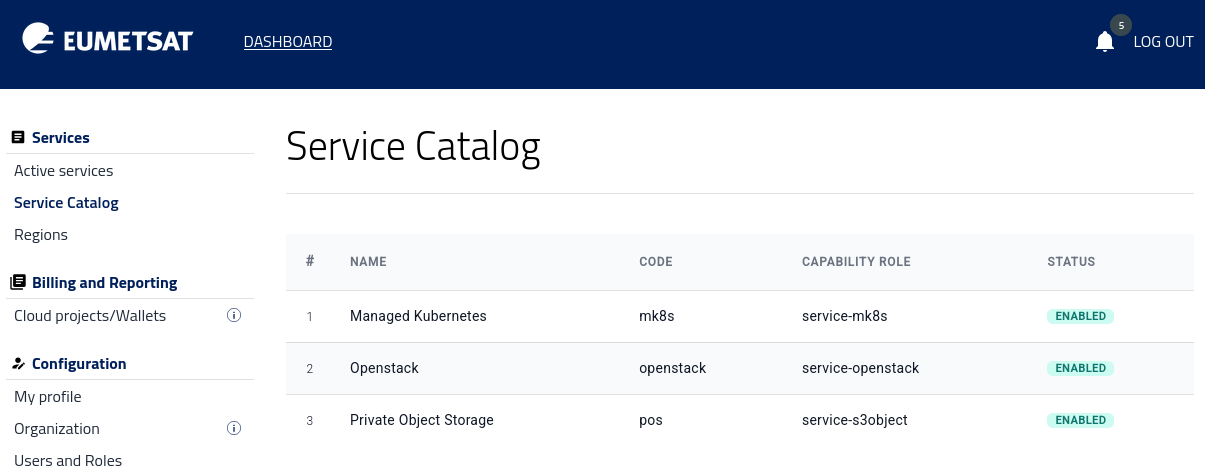
The management interfaces available in the portal depend on the services assigned to your account. Use option Service Catalog to see which services are active:
No. 3 You have access to at least one region
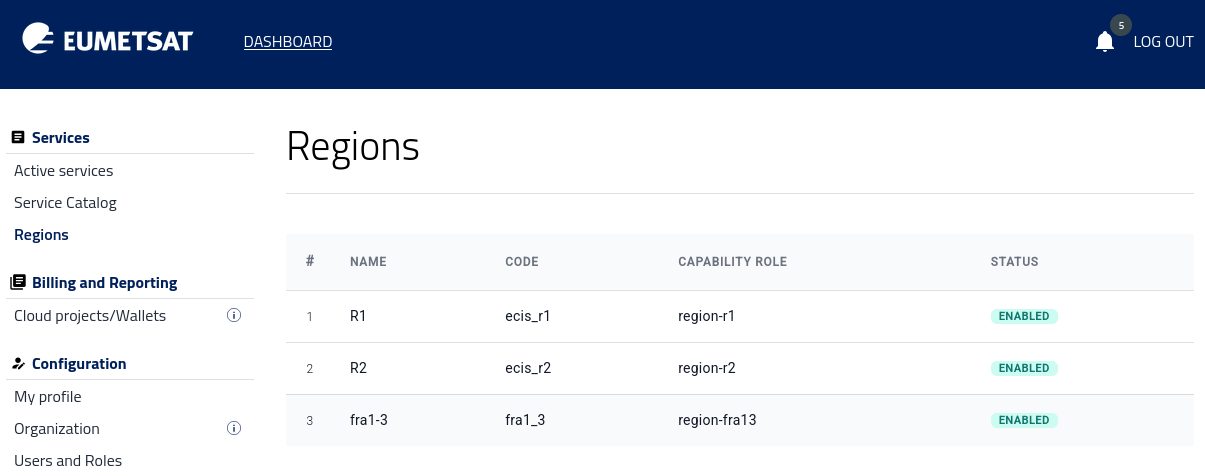
Some interfaces are region-specific, so the list of available regions may differ from one account to another. Use option Regions to see which regions are active:
No. 4 You have the necessary role to open the selected interface
Some actions, such as obtaining Keystone credentials, may require administrator-level access in the portal. See article Tenant Manager users and roles.
No. 5 Managed Kubernetes and OpenStack
There are several management interfaces that you can open from the portal.
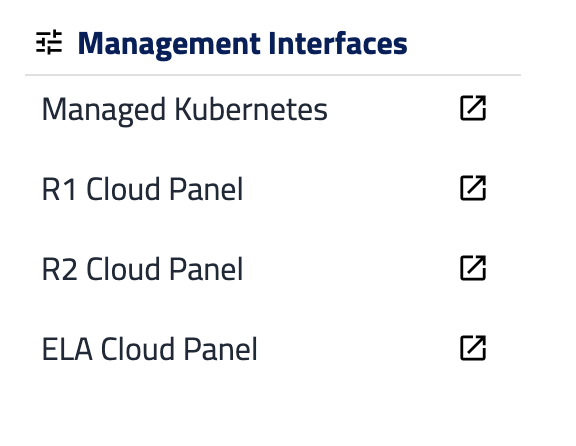
Managed Kubernetes is a Kubernetes service that runs separately from OpenStack. The other interfaces – R1, R2 and FRA1-3 – are OpenStack based, each within its own region.
For further details, see the Managed Kubernetes section as well as Cloud Services.
Managed Kubernetes
For this interface, click on Managed Kubernetes and then select one of the regions available to your account.
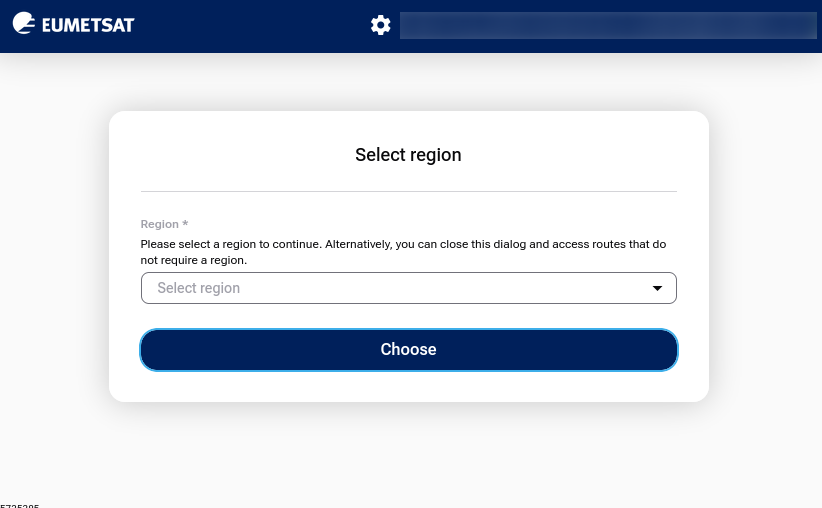
For example, you can select FRA1-3:
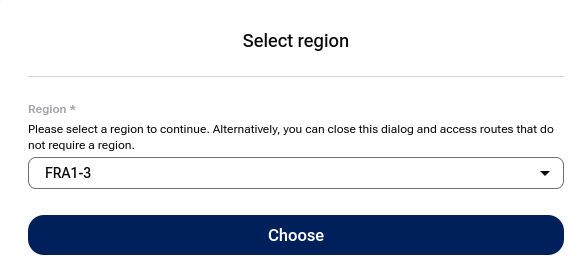
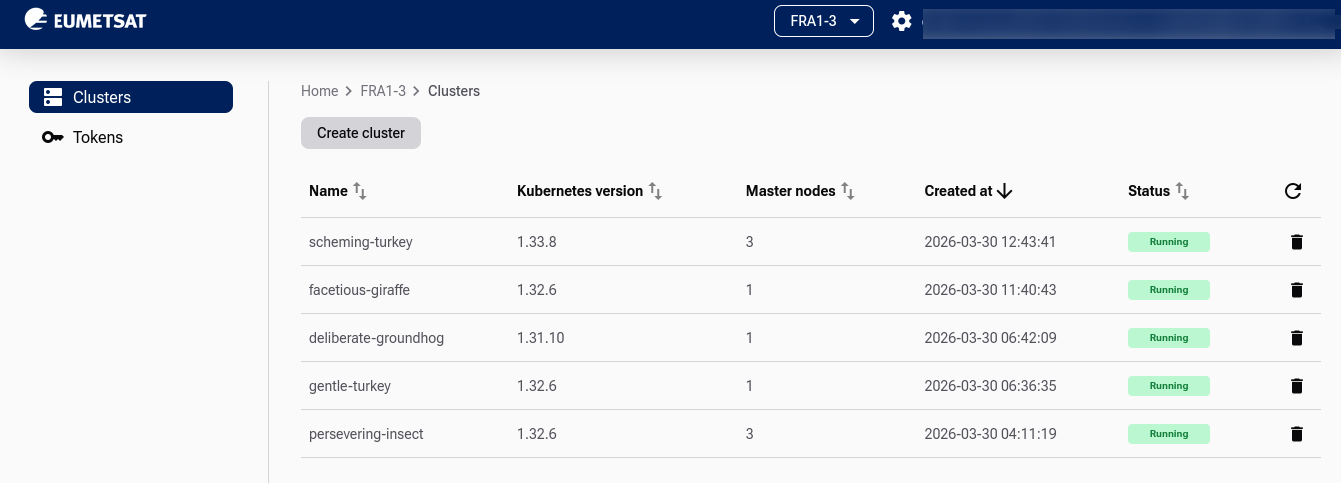
After that, the interface opens and displays the list of existing clusters in that region:
Clouds R1 and R2 are opened through the portal and use the EUMETSAT-branded login page.
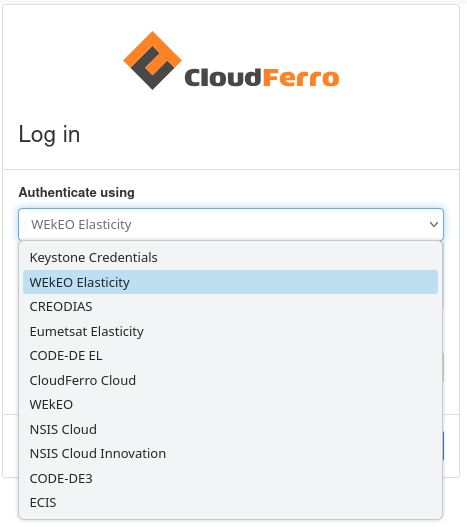
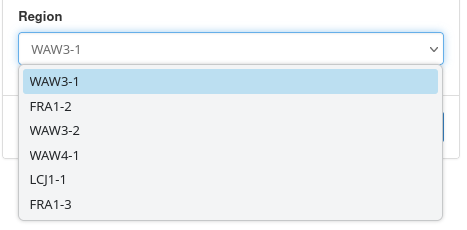
Cloud FRA1-3 may serve as an extension to R1 and/or R2 but is also a public CloudFerro cloud. Its Horizon interface is opened through the shared CloudFerro Horizon service at horizon.cloudferro.com, where you must first select youridentity provider and then choose the FRA1-3 region.
R1 Cloud Panel
Clicking this option opens the following form:
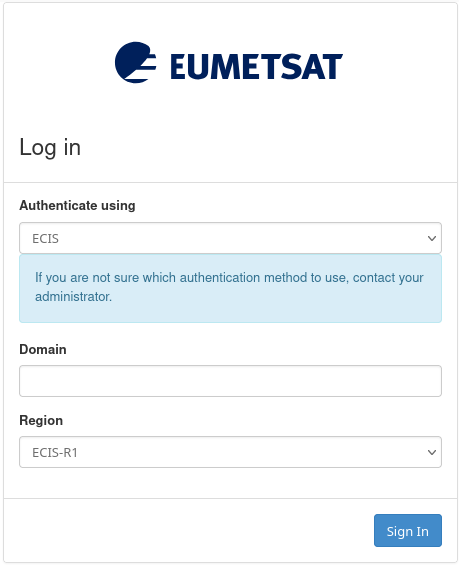
You are the admin of the account
If you are an administrator of your account in the portal, click on button Sign In and proceed to the Horizon interface.
You are the user of the account
If you are a user of the account (meaning the admin of that account has previously assigned you a member role) click Keystone credentials and select Keystone Credential from the drop-down list:
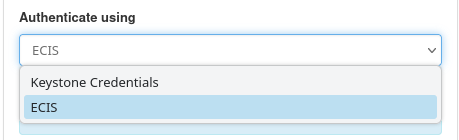
The form then changes as follows:
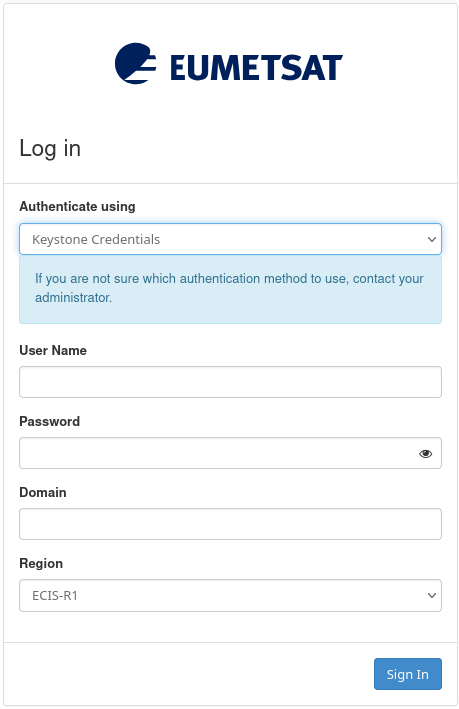
Enter the User Name and Password that were allocated to you in order to continue to the Horizon interface for R1 region. Then use EWC IAM identity provider to sign in
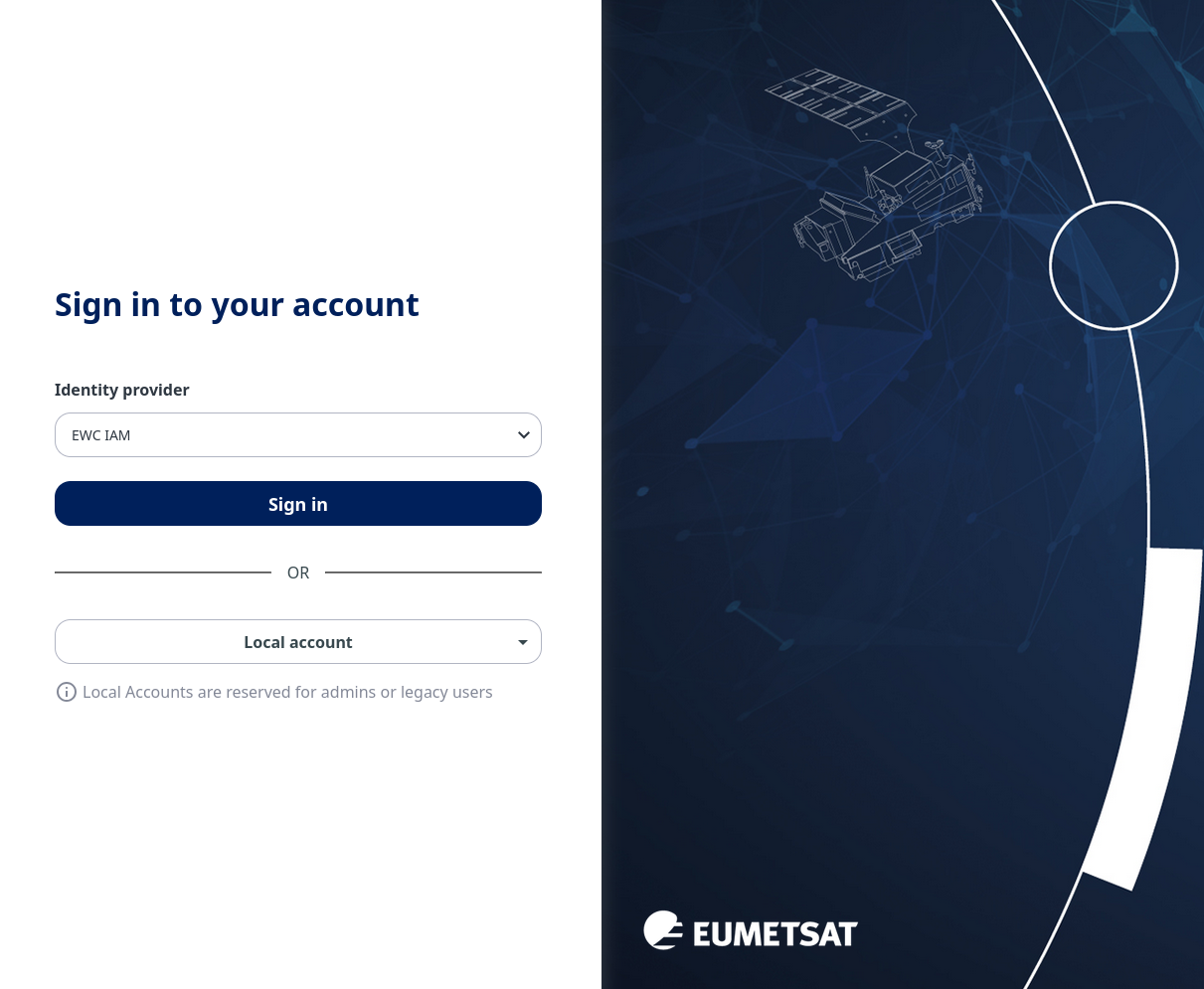
The next step is to enter the Horizon interface:
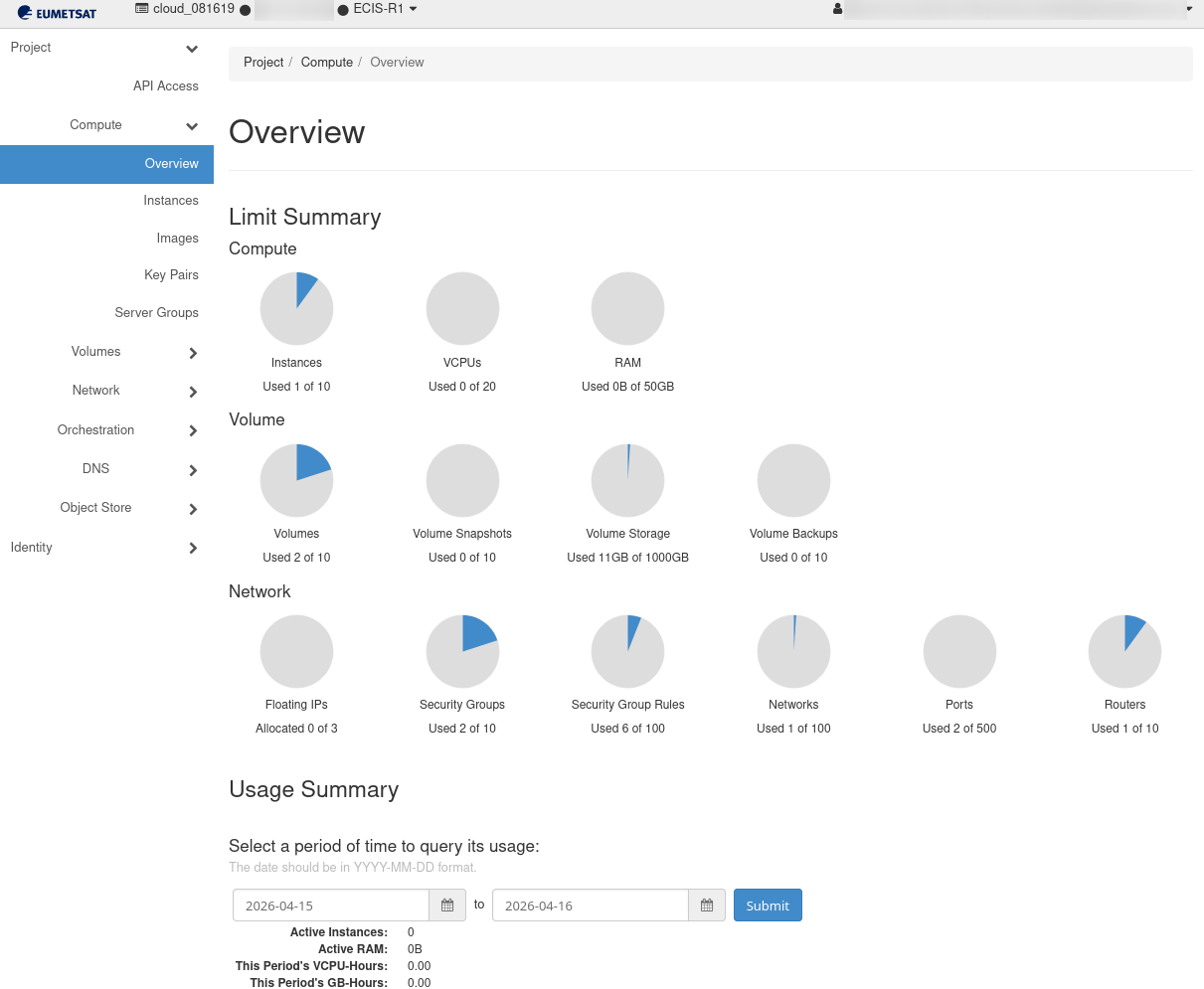
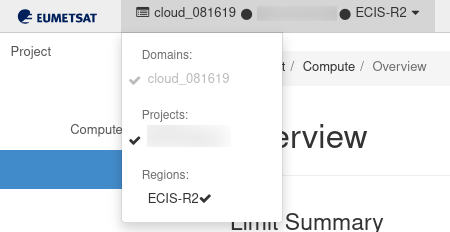
In the upper left corner you can see the projects and regions present:

R2 Cloud Panel
This option opens the OpenStack Horizon interface for region R2:
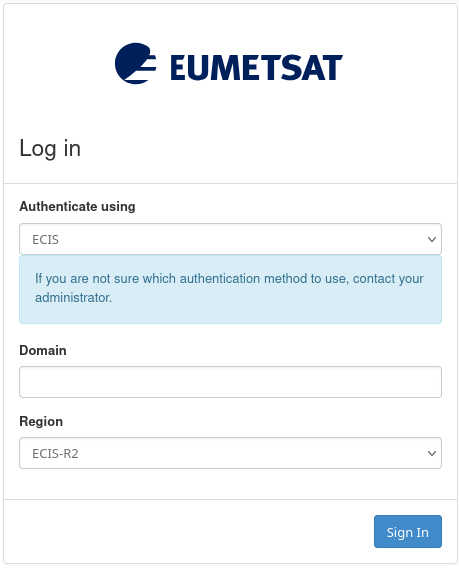
The same logic applies for both the admin and the user/member of the R2 account.
You will end up in Horizon interface for region R2:
FRA1-3 Cloud Panel
This option opens the OpenStack Horizon interface for region FRA1-3:
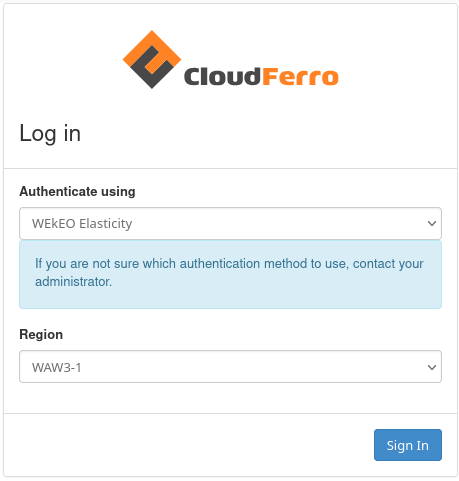
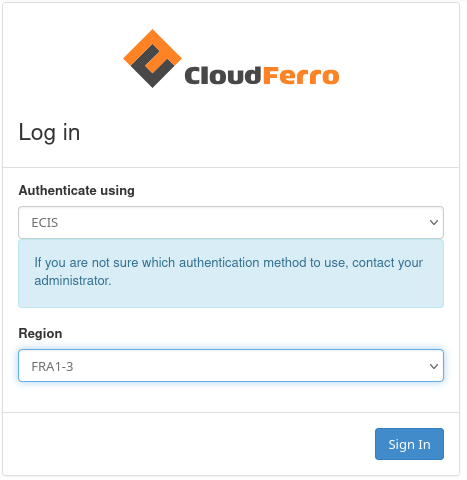
Note that you are logging in to one of the public clouds run by CloudFerro. First find ECIS in Authenticate using field
and then find FRA1-3 in Region fields:
You should have this on the screen:
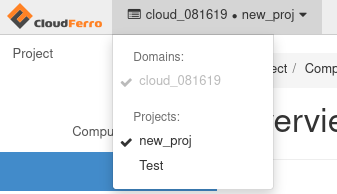
You should end up in Horizon interface:
What To Do Next
It is possible to use OpenStack in combination with Managed Kubernetes and Private storage, see Services available.