How to create a Kubernetes cluster using the Managed Kubernetes launcher GUI
In this tutorial, you will learn how to create a new Kubernetes cluster using the Managed Kubernetes launcher graphical user interface (GUI). The launcher lets you create and manage Kubernetes clusters directly from your browser. To access the created cluster from your workstation, you will later use kubectl and a downloaded kubeconfig file.
Kubernetes clusters contain two groups of nodes:
- Control plane
One or more nodes that manage and coordinate the cluster.
- Node pools
Worker nodes, that is, the virtual machines that run your applications and workloads.
You can create a cluster in two valid ways:
Control plane first, node pools later – create the control plane nodes and add one or more node pools afterwards.
Control plane + node pools in one flow – add one or more node pools during cluster creation.
This article shows the control plane first flow to keep the setup steps clear. If you already know your worker requirements, you can add node pools during cluster creation instead. See Add node pools to Managed Kubernetes cluster using the launcher GUI.
What You Will Do
In this article, you will:
open the Managed Kubernetes launcher from the cloud dashboard,
select the region where the cluster will run,
define the cluster basics,
configure the control plane,
optionally add worker node pools,
create the cluster,
download the access configuration,
connect to the cluster using kubectl,
verify that the cluster is ready for use.
Prerequisites
1. Hosting account on cloud environment
To use Managed Kubernetes, you need:
your general cloud environment account https://my.cloud.eumetsat.int,
access to the Managed Kubernetes dashboard at https://mks.cloud.eumetsat.int/.
2. Access to Managed Kubernetes
If you do not yet have access to the Managed Kubernetes service, contact Support and request that it be enabled for your account.
See: Help Desk and Support.
No. 3 Supported Managed Kubernetes region
Available Managed Kubernetes regions for cloud environment:
R1
R2
FRA1-3
The same region must be used later for cluster operations such as adding node pools, creating shared networks, and using region-specific API endpoints.
4. Billing, quotas, and resources
Before creating a cluster, make sure that you have enough quota and resources for the control plane and any worker nodes you plan to add.
Managed Kubernetes resources on this brand are billed. Before creating a cluster, make sure that billing is enabled for your account and that sufficient funds are available for the resources you plan to use.
Warning
You must ensure that your usage stays within your intended spending level. The service will not be stopped automatically when that level is exceeded, and the full usage amount will still be billed.
On cloud environment, available resources are governed through your cloud project quotas. Check the quotas and flavor limits available to your project before creating the cluster.
See Dashboard Overview – Project Quotas And Flavors Limits on cloud environment.
If the currently available resources are not sufficient for the cluster you want to create, you can proceed in two stages:
First, create only the control plane.
Then, contact Support to request additional resources before adding worker nodes.
See: Help Desk and Support.
5. Installation of kubectl
You will access the cluster using kubectl. Standard installation methods for kubectl are described on the official Kubernetes page: Install Tools.
In this article, you will also learn how to point kubectl to the Managed Kubernetes cluster you create.
Create a new cluster
Select the region where you want to create the cluster. If this is the very first time, it will offer you to choose from the available regions. More typically, one of more clusters will already be available so it may look like this for the chosen region:
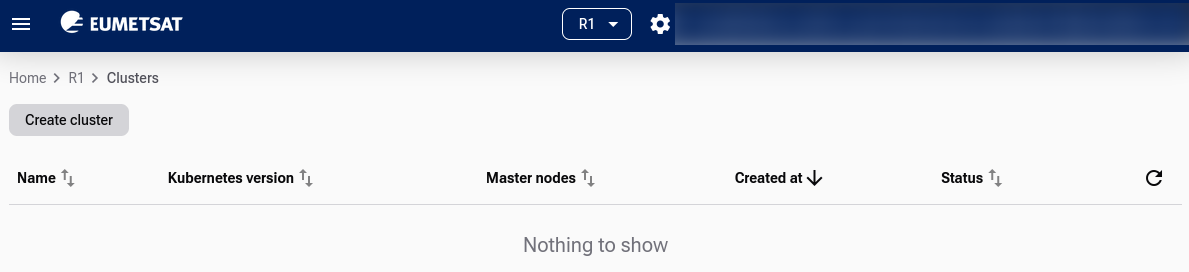
Initial Managed Kubernetes launcher interface.
To create a new cluster, click the  button. A form will appear on the screen, allowing you to enter data for the new cluster.
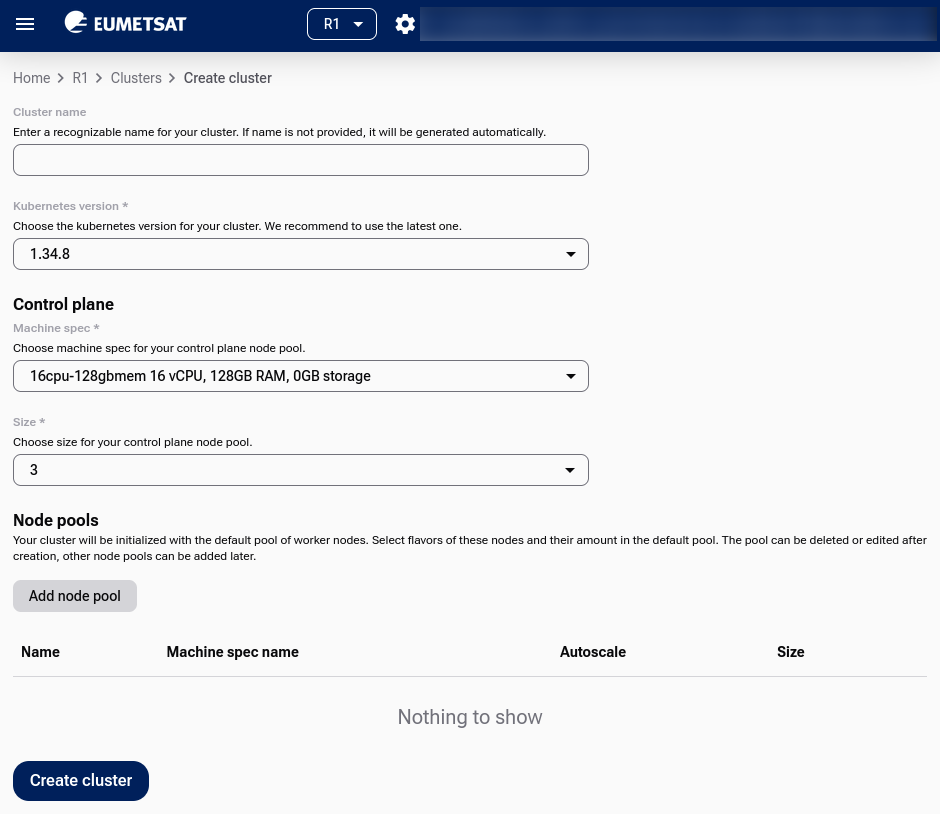
Define Cluster Name and Kubernetes Version
- Cluster Name
Enter an appropriate name for your cluster. If this field is left empty, the system will automatically generate a cluster name.
- Kubernetes Version
For new clusters, it is recommended to use the latest available version. To upgrade to a newer version of Kubernetes later, see Upgrade Managed Kubernetes cluster on cloud environment.
Add Control Plane Nodes
- Flavors
Select the flavor for the virtual machines in the cluster control plane. Here is what available flavors for the control plane typically look like:
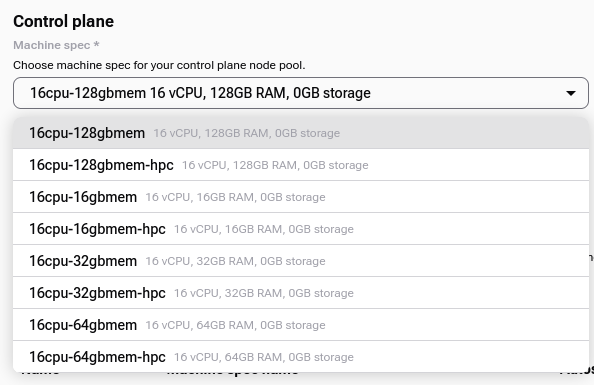
Control plane flavors determine the performance of control plane nodes.
- Size
Choose 1, 3, or 5 control plane nodes.
Use 1 for testing, and 3 for production-grade High Availability.
Tip
For production-grade reliability, choose 3 control plane nodes to achieve high availability. Use 1 only for development or testing.
Adding node pools (optional)
You can add node pools now during cluster creation or later after the control plane is created. See Add node pools to Managed Kubernetes cluster using the launcher GUI.
Click Create cluster to start creating the cluster.
Creating the cluster
The status will change to  .
.
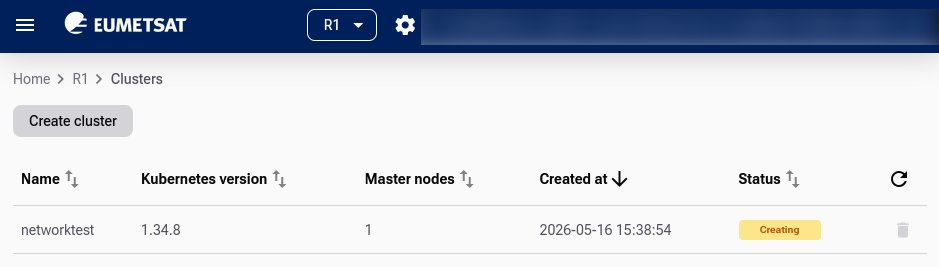
Cluster creation in progress. Status shows .
Once the creation starts, you see a list of existing Kubernetes clusters.
Cluster list view
The Cluster List View appears if there is at least one cluster present.
After the cluster has been created, its status becomes  .
.
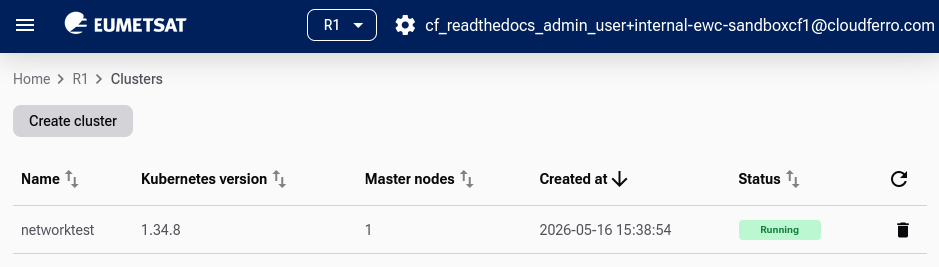
Cluster status changes to when ready.
Single Cluster View: Cluster Details
Click the cluster name in the list to open its Details view.

Cluster details view.
Access the cluster using kubectl
To connect kubectl to the cluster, download its config file. Click Get kubeconfig. A file named clustername_config.yaml will download. In this example, it is called networktest_config.yaml.
To configure kubectl:
export KUBECONFIG=networktest_config.yaml
Assuming that the folder already exists, you can also place the config file in a centralized folder:
export KUBECONFIG=$HOME/kubeconfigs/networktest_config.yaml
If you get an error like Unable to connect to the server, verify the config path, your network access, and that the cluster is .
To verify access:
kubectl get nodes -o wide
The following example shows the output for such a cluster:

The output of the kubectl command, showing one control plane node and one worker node.
The cluster is running and kubectl is working.
Cluster resources
The Resources section is a central place not only to browse what is running, but also to validate, debug, and audit the state of your Kubernetes cluster.
Click Resources and see the main resource categories, for example Namespaces, Nodes, Workloads, and Storage:
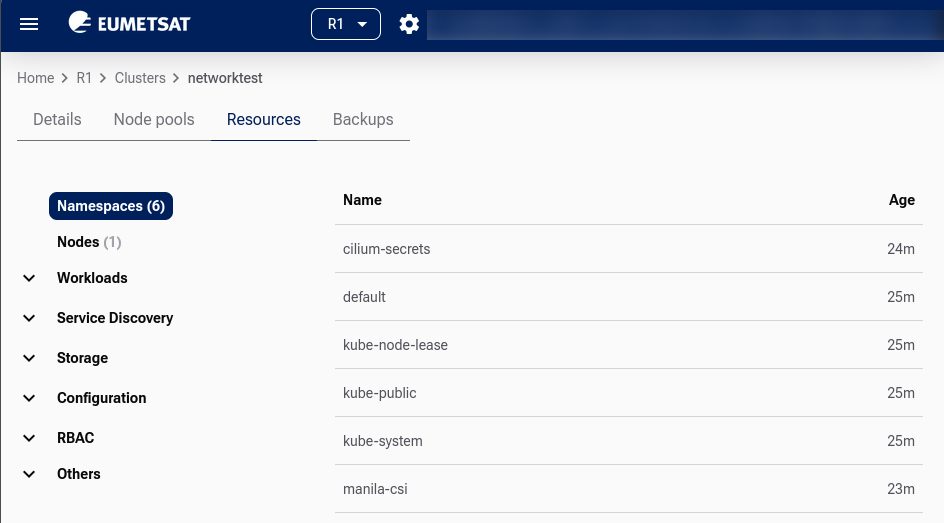
Each category can be expanded to display applicable resources. In the image above, the launcher shows available Namespaces.
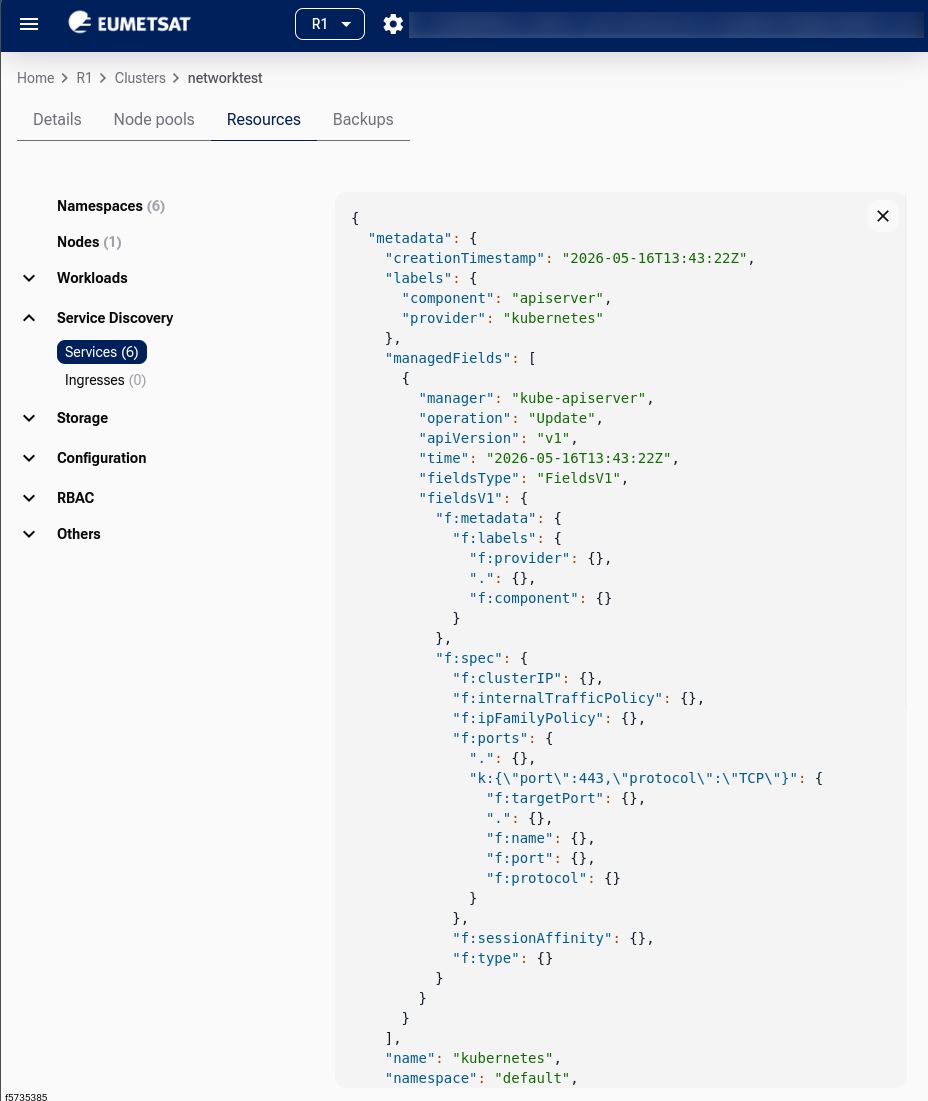
When you click a specific resource in the table on the right, you can access the JSON representation of that resource. Here is what a typical JSON screen might look like:
Cluster backup
The single cluster view also provides a button for starting a cluster backup. For details, see Managed Kubernetes Backups on cloud environment.
Deleting a cluster
To delete the cluster, click the  icon in its row. Then confirm that you want to delete it:
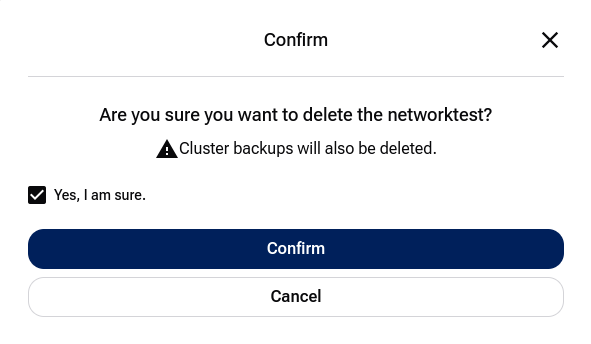
Confirm deletion using the icon.
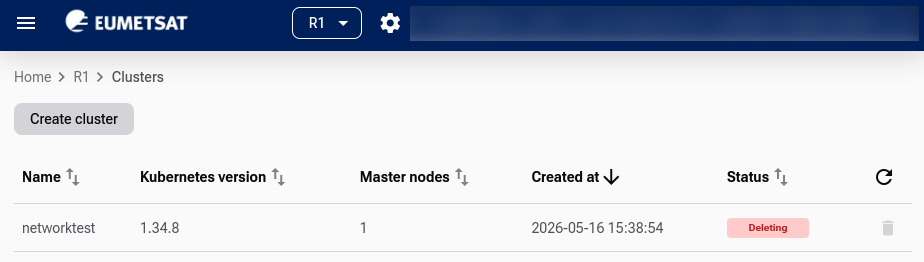
Cluster enters  state until removal completes.
Deleting a cluster also takes a few minutes.
Deploying an application on your cluster
Before proceeding with deployments, make sure that:
the cluster is in
state,you can run kubectl get nodes successfully.
What To Do Next
With your cluster created and kubectl configured, you can start deploying pods, creating services, and running workloads.
To run workloads, you typically add worker nodes by creating a node pool. See Add node pools to Managed Kubernetes cluster using the launcher GUI.
To upgrade to a newer version of Kubernetes, see Upgrade Managed Kubernetes cluster on cloud environment.
You can also create Kubernetes clusters with Terraform: Create a Managed Kubernetes Cluster with Terraform on cloud environment.