Add node pools to Managed Kubernetes cluster using the launcher GUI
In this tutorial, you will learn how to add worker nodes to an Managed Kubernetes cluster by creating one or more node pools in the launcher GUI.
What we are going to cover
Prerequisites
No. 1 Existing cluster
You can add a node pool to a  cluster created according to article How to create a Kubernetes cluster using the Managed Kubernetes launcher GUI.
You can also apply the steps from this article when adding a node pool during cluster creation.
No. 2 Quotas and resources
Make sure you have enough quota to create worker nodes. If you need more resources for your cluster, contact Support and request a quota extension before creating node pools.
No. 3 Supported Managed Kubernetes region
Available Managed Kubernetes regions for cloud environment:
R1
R2
FRA1-3
Node pools are created in the same region as the Managed Kubernetes cluster you them to be attached to. All other used resources must be in the same region as well.
Single Cluster View – Node Pools
How to add a node pool
Open your cluster and click Node Pools. In the following image, we see a list of existing node pools, as well as the Create node pool button.
To start, click that button:
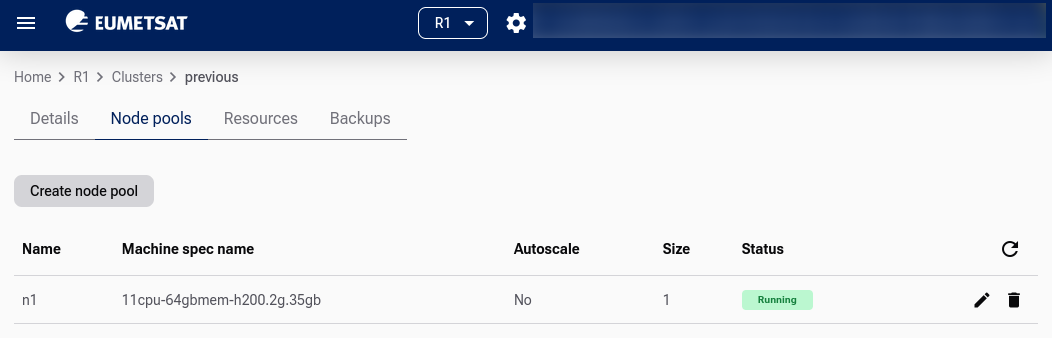
Example node pool list.
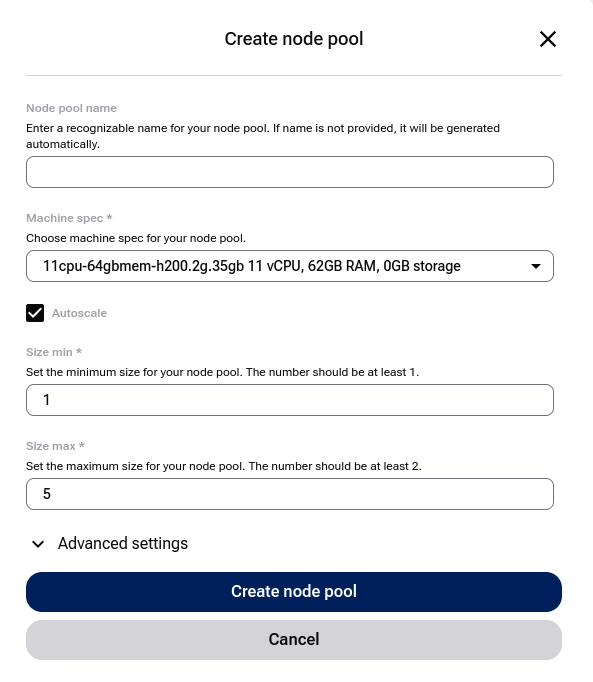
The node pool creation form looks like this:
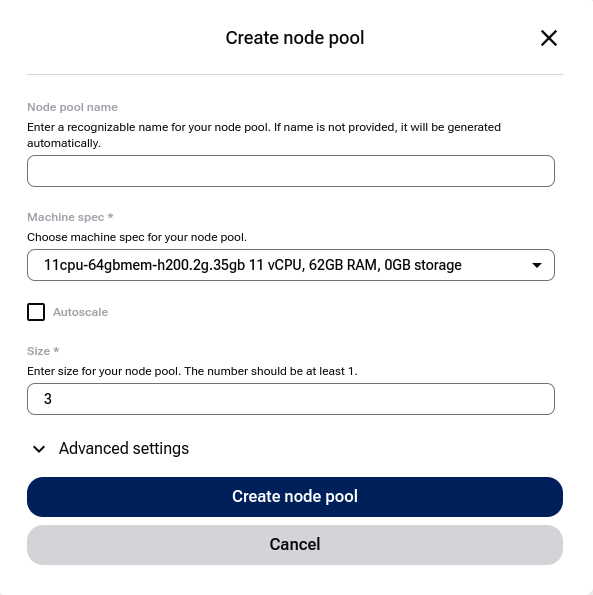
Node pool creation form.
- Node Pool Name
If left empty, the name will be generated automatically.
- Flavor
Choose a flavor based on your needs.
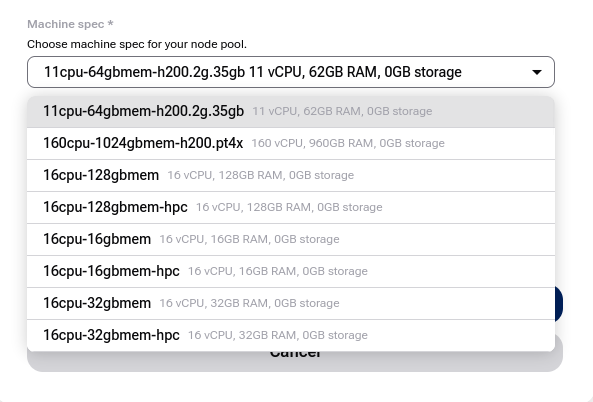
Select flavor for node pool.
Tip
When creating a node pool with one of the vGPU machine specs, the NVIDIA GPU Operator gets installed on the cluster. To use GPU acceleration by a workload, for example by a pod, apply this setting in the pod’s spec.containers definition:
resources:
  limits:
    nvidia.com/gpu: 1
By default, the first pod scheduled on a given node in such a node pool will use the full vGPU unit assigned to this node. To enable splitting the vGPU between more pods, see the NVIDIA GPU Operator - Time Slicing documentation.
- Autoscale
Enable this option to allow the cluster to automatically increase or decrease the number of nodes based on demand.
The cluster autoscaler adds or removes nodes based on pending pods. This complements the Horizontal Pod Autoscaler (HPA), which adjusts the number of pods inside existing nodes.
Tip
The cluster autoscaler is most effective when combined with pod resource limits and requests. Make sure your workloads define them correctly.
- Size of Node Pool
Start with 1 node if unsure. You can resize the node pool later.
- Advanced Settings
In Advanced Settings, you can:
Specify OpenStack shared network IDs.
Assign initial Kubernetes labels and taints.
Labels and taints are outside the scope of this article.
Finish creating the node pool and click Add node pool. The new pool will appear in the node pool list, and worker nodes will be created in the background.
How to edit a node pool
To change the parameters of an existing node pool, click the pen icon,  , on the right side of the node pool row.
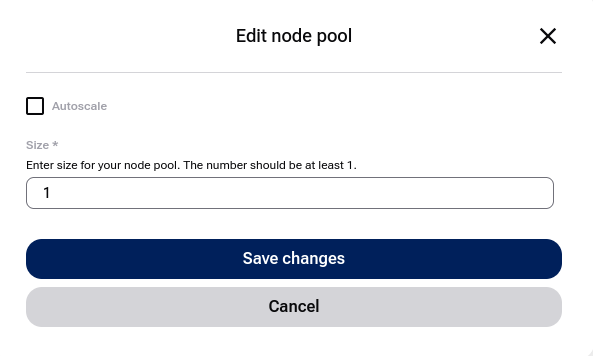
Node pool editing screen.
You cannot change the name or the flavor of the node pool, but you can adjust worker capacity in two ways.
- Define a range
Turn Autoscale on. Two new options appear in the form:
Autoscaling enabled with minimum and maximum limits.
- Redefine fixed size of node pool
Enter the required number in that field and click Save changes.
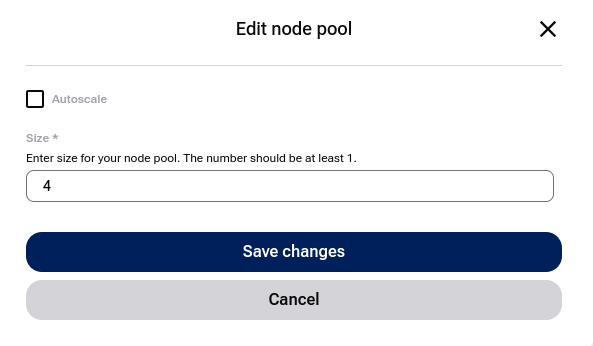
Worker nodes are scaled manually. The status temporarily changes to
.
When editing a node pool, you can also change the related networks in Advanced Settings.
Delete a node pool
Click the  icon next to the node pool.
What To Do Next
With worker nodes added, you can start deploying pods, creating services, and running workloads.
If you already have a cluster, you can back it up with Managed Kubernetes Backups on cloud environment.
You can also create Kubernetes clusters using Terraform, see Create a Managed Kubernetes Cluster with Terraform on cloud environment.