S3 bucket object versioning on cloud environment
S3 bucket versioning allows you to keep multiple versions of files stored in object storage. It is useful for:
data recovery and backup,
accidental deletion protection,
collaboration and document management,
application testing and rollbacks,
change tracking for large datasets,
file synchronization and archiving.
In this article, you will learn how to:
configure AWS CLI for object storage on cloud environment,
enable versioning on a bucket,
upload several versions of the same file,
list available object versions,
download a selected version,
work with delete markers,
permanently remove selected versions,
configure automatic removal of previous versions,
suspend versioning.
Prerequisites
No. 1 Account
You need a cloud environment hosting account with access to the Horizon interface: https://horizon.cloudferro.com/auth/login/?next=/.
No. 2 AWS CLI installed on your local computer or virtual machine
AWS CLI is a free and open source tool that can manage different clouds, not only Amazon Web Services. In this article, you will use it to control S3-compatible object storage hosted on cloud environment cloud.
This article was written for Ubuntu 22.04. The commands may work on other operating systems, but may require adjustment.
To install AWS CLI on Ubuntu 22.04, run:
sudo apt install awscli
No. 3 Generated S3 credentials
To authenticate to cloud environment object storage when using AWS CLI, you need S3 credentials.
No. 4 Bucket naming rules
During this article, you may create one or more buckets. Make sure that you know which characters are allowed in bucket names.
See the section about creating a new object storage container in Deep dive into using s3cmd to access object storage.
No. 5 Terminology: container vs. bucket
In this article, both container and bucket refer to object storage resources hosted on cloud environment cloud.
The Horizon dashboard more often uses the term container. AWS CLI and S3-compatible tools more often use the term bucket.
What we are going to cover
Configuring and testing AWS CLI
Choosing bucket names
Listing existing buckets
Creating a bucket only if needed
Enabling versioning on a bucket
Uploading the first version of a file
Uploading another version of the same file
Listing objects and object versions
Downloading a selected version of a file
Deleting objects on version-enabled buckets
Removing a delete marker
Permanently removing a file version
Using a lifecycle policy to remove noncurrent versions
Suspending versioning
Configuring and testing AWS CLI
This section shows how to configure AWS CLI for object storage access. If AWS CLI has already been configured, review the configuration and adjust it if needed.
Step 1: Configure AWS CLI
Create the .aws folder in your home directory:
mkdir -p ~/.aws
Create the credentials file:
touch ~/.aws/credentials
Navigate to the .aws folder:
cd ~/.aws
This is how the contents of your .aws folder may look:

Open the credentials file in a plain text editor. For example, with nano:
nano credentials
Enter the following content:
[default]
aws_access_key_id = <YOUR_ACCESS_KEY>
aws_secret_access_key = <YOUR_SECRET_KEY>
Replace <YOUR_ACCESS_KEY> and <YOUR_SECRET_KEY> with your actual S3 access key and secret key.
Save the file and exit the text editor.
Step 2: Set the S3 endpoint for your region
The commands in this article use the S3_ENDPOINT shell variable. Set it to the S3 endpoint for the cloud region you are working with.
S3_ENDPOINT="https://s3.r1.cloud.eumetsat.int"
S3_ENDPOINT="https://s3.r2.cloud.eumetsat.int"
S3_ENDPOINT="https://s3.fra1-3.cloudferro.com"
Important
The S3_ENDPOINT variable is valid only in the current terminal session. If you open a new terminal session, set it again before running the commands from this article.
Step 3: Verify that AWS CLI is working
List buckets visible to your credentials:
aws s3api list-buckets \
  --endpoint-url "$S3_ENDPOINT"
The output should be in JSON format. If you have buckets named cf-s3-test and cf-s3-test-1, it may look like this:
{
    "Buckets": [
        {
            "Name": "cf-s3-test",
            "CreationDate": "2026-04-30T12:03:28.216Z"
        },
        {
            "Name": "cf-s3-test-1",
            "CreationDate": "2026-04-30T12:53:08.381Z"
        }
    ],
    "Owner": {
        "DisplayName": "my-project",
        "ID": "1234567890abcdefghijklmnopqrstuv"
    }
}
Here:
Buckets contains the list of buckets visible to your credentials.
Owner contains information about your project.
Note
In this article, colors have been added to make JSON examples more readable. AWS CLI typically does not output colored text.
Choosing bucket names
Older versions of this article used five different buckets. In some environments, however, a project may have no more than two S3 buckets at the same time. For that reason, this version uses fewer bucket names and treats bucket creation as optional.
Use these variables:
- bucket_name1
Main bucket used for most versioning examples.
- bucket_name2
Optional second bucket used only for examples that require a bucket on which versioning has never been enabled, or for testing suspended versioning.
Assign bucket names to shell variables. You can use existing buckets returned by the list-buckets command, or choose new names if your bucket quota allows creating new buckets.
Example:
bucket_name1="cf-s3-test"
bucket_name2="cf-s3-test-1"
Important
The shell variables are valid only as long as your terminal session is active. When you start a new terminal session, assign these variables again.
To use the content of a shell variable as an argument of a command, prefix the variable name with $. For example:
aws s3api list-objects \
  --endpoint-url "$S3_ENDPOINT" \
  --bucket "$bucket_name1"
Making sure that bucket names are unique
If single tenancy is enabled on the cloud you are using, the bucket name may need to be unique for the entire cloud. Names such as versioning-test, examplebucket, or files may already exist.
If bucket creation fails because the name is already used, choose a different name.
To create unique names, you can add:
your initials,
date and time,
a random number,
a UUID,
or a combination of these methods.
On Ubuntu 22.04, you can generate a UUID with:
uuidgen
Example output:
889fa8de-9623-4735-99c7-9f1567e2a965
You can then add it to a bucket name:
bucket_name1="versioning-test-889fa8de-9623-4735-99c7-9f1567e2a965"
Bucket quota
A project may have a strict bucket quota. In some environments, no more than two S3 buckets may exist at the same time.
If bucket creation fails with a quota error, use one of the existing buckets returned by list-buckets, remove an unused bucket, or contact support to ask whether the quota can be increased.
Creating a bucket, if needed
Create a new bucket only if you do not already have a suitable bucket and your project bucket quota allows another bucket to be created.
To create a bucket whose name is stored in $bucket_name1, run:
aws s3api create-bucket \
  --endpoint-url "$S3_ENDPOINT" \
  --bucket "$bucket_name1"
The output of this command should be empty if everything went well.
To verify that the bucket exists, list buckets again:
aws s3api list-buckets \
  --endpoint-url "$S3_ENDPOINT"
Enabling versioning on a bucket
To enable versioning on $bucket_name1, use put-bucket-versioning:
aws s3api put-bucket-versioning \
  --endpoint-url "$S3_ENDPOINT" \
  --bucket "$bucket_name1" \
  --versioning-configuration MFADelete=Disabled,Status=Enabled
Note
On Amazon Web Services, MFADelete can increase security by requiring two authentication factors when changing versioning status or removing file versions. Here, it is disabled for simplicity.
The output of this command should be empty.
Uploading the first version of a file
Create a local file named something.txt with the following content:
This is version 1
The file may look like this in your text editor:

Upload the file to $bucket_name1:
aws s3api put-object \
  --endpoint-url "$S3_ENDPOINT" \
  --bucket "$bucket_name1" \
  --body something.txt \
  --key something.txt
In this command:
- –body
Specifies the local file to upload.
- –key
Specifies the object name and path under which the file is stored in the bucket.
The output should be similar to this:
{
    "ETag": "\"a4d8980efbd9b71f416595a3d5588b32\"",
    "VersionId": "whrj2pDFrrFq0WLdH0zGzprfkebQykf"
}
This upload created the first version of the file. The ID of this version is the value of VersionId.
S3 paths
The –key parameter is used to reference an uploaded object in the bucket.
If used without slashes, as in the previous example, the file is stored in the root of the bucket.
If your file is stored under a directory-like prefix, include that prefix in the key. Separate directories and files with forward slashes (/). Do not add a slash at the beginning of the path.
For example, if your bucket contains:
directory-like prefix place1,
inside it another prefix place2,
inside it a file named myfile.txt,
then specify its key like this:
--key place1/place2/myfile.txt
To practice this, create a local file named myfile.txt and upload it under that key:
aws s3api put-object \
  --endpoint-url "$S3_ENDPOINT" \
  --bucket "$bucket_name1" \
  --body myfile.txt \
  --key place1/place2/myfile.txt
Uploading another version of a file
Return to something.txt on your local computer and modify it so that it contains:
This is version 2
The file may look like this:

Upload the modified file to the same bucket and the same key:
aws s3api put-object \
  --endpoint-url "$S3_ENDPOINT" \
  --bucket "$bucket_name1" \
  --key something.txt \
  --body something.txt
The output is similar, but contains a different VersionId:
{
    "ETag": "\"ded190b85763d32ce9c09a8aef51f44c\"",
    "VersionId": "t22ZzEq6kt5ILKFfLZgoeSzW.I9HVtN"
}
To list objects in the bucket, run:
aws s3api list-objects \
  --bucket "$bucket_name1" \
  --endpoint-url "$S3_ENDPOINT"
The output will be similar to this:
{
    "Contents": [
        {
            "Key": "something.txt",
            "LastModified": "2024-08-23T10:32:30.259Z",
            "ETag": "\"ded190b85763d32ce9c09a8aef51f44c\"",
            "Size": 18,
            "StorageClass": "STANDARD",
            "Owner": {
                "DisplayName": "this-project",
                "ID": "1234567890abcdefghijklmnopqrstuv"
            }
        }
    ],
    "RequestCharged": null
}
In the example above, the bucket still contains only one visible file: something.txt. The upload overwrote the current visible version, but the previous version is still stored.
Listing available versions of a file
Example 1: One file, two versions
To list available object versions in the bucket, use list-object-versions:
aws s3api list-object-versions \
  --endpoint-url "$S3_ENDPOINT" \
  --bucket "$bucket_name1"
The output may look like this:
{
    "Versions": [
        {
            "ETag": "\"ded190b85763d32ce9c09a8aef51f44c\"",
            "Size": 18,
            "StorageClass": "STANDARD",
            "Key": "something.txt",
            "VersionId": "t22ZzEq6kt5ILKFfLZgoeSzW.I9HVtN",
            "IsLatest": true,
            "LastModified": "2024-08-23T10:32:30.259Z",
            "Owner": {
                "DisplayName": "this-project",
                "ID": "1234567890abcdefghijklmnopqrstuv"
            }
        },
        {
            "ETag": "\"a4d8980efbd9b71f416595a3d5588b32\"",
            "Size": 18,
            "StorageClass": "STANDARD",
            "Key": "something.txt",
            "VersionId": "whrj2pDFrrFq0WLdH0zGzprfkebQykf",
            "IsLatest": false,
            "LastModified": "2024-08-23T10:19:24.943Z",
            "Owner": {
                "DisplayName": "this-project",
                "ID": "1234567890abcdefghijklmnopqrstuv"
            }
        }
    ],
    "RequestCharged": null
}
It contains two versions. Each version has its own VersionId.
Key |
VersionId |
|---|---|
something.txt |
t22ZzEq6kt5ILKFfLZgoeSzW.I9HVtN |
something.txt |
whrj2pDFrrFq0WLdH0zGzprfkebQykf |
Both versions are tied to the same object key: something.txt.
Example 2: Multiple files, multiple versions
An alternative situation may contain two files, where one of them has two versions.
The output of list-object-versions could then look like this:
{
    "Versions": [
        {
            "ETag": "\"adda90afa69e725c2f551e0722014726\"",
            "Size": 575,
            "StorageClass": "STANDARD",
            "Key": "something1.txt",
            "VersionId": "kv7QRQsfHhEe-T6c9g-v3uIPoyX6FTs",
            "IsLatest": true,
            "LastModified": "2024-08-26T16:10:49.979Z",
            "Owner": {
                "DisplayName": "this-project",
                "ID": "1234567890qwertyuiopasdfghjklzxc"
            }
        },
        {
            "ETag": "\"947073995b23baa9a565cf21bf56a2ba\"",
            "Size": 6,
            "StorageClass": "STANDARD",
            "Key": "something2.txt",
            "VersionId": "no1KrA3MbEtjIk1CnN5U.rTtFKFXSpj",
            "IsLatest": true,
            "LastModified": "2024-08-26T16:12:29.961Z",
            "Owner": {
                "DisplayName": "this-project",
                "ID": "1234567890qwertyuiopasdfghjklzxc"
            }
        },
        {
            "ETag": "\"7d7b28bafa5222d9083fa4ea7e97cff6\"",
            "Size": 106,
            "StorageClass": "STANDARD",
            "Key": "something2.txt",
            "VersionId": "gRYReY1SpVI3rS-Qp0NYDPofoAfGfc7",
            "IsLatest": false,
            "LastModified": "2024-08-26T16:11:21.584Z",
            "Owner": {
                "DisplayName": "this-project",
                "ID": "1234567890qwertyuiopasdfghjklzxc"
            }
        }
    ],
    "RequestCharged": null
 }
Key |
VersionId |
|---|---|
something1.txt |
kv7QRQsfHhEe-T6c9g-v3uIPoyX6FTs |
something2.txt |
no1KrA3MbEtjIk1CnN5U.rTtFKFXSpj |
something2.txt |
gRYReY1SpVI3rS-Qp0NYDPofoAfGfc7 |
File something1.txt has one version, while file something2.txt has two versions.
Downloading a chosen version of a file
To download a selected version of something.txt, use get-object and provide the required VersionId.
For example, to download the version with ID whrj2pDFrrFq0WLdH0zGzprfkebQykf, run:
aws s3api get-object \
  --endpoint-url "$S3_ENDPOINT" \
  --bucket "$bucket_name1" \
  --key something.txt \
  --version-id whrj2pDFrrFq0WLdH0zGzprfkebQykf \
  ./something.txt
In this command:
- –key
Specifies the object key in the bucket.
- –version-id
Specifies the ID of the chosen version.
- ./something.txt
Specifies the local file path to which the object version should be downloaded. If a file already exists there, it may be overwritten.
The file should be downloaded and the command should return output similar to this:
{
    "AcceptRanges": "bytes",
    "LastModified": "Fri, 23 Aug 2024 10:19:24 GMT",
    "ContentLength": 18,
    "ETag": "\"a4d8980efbd9b71f416595a3d5588b32\"",
    "VersionId": "whrj2pDFrrFq0WLdH0zGzprfkebQykf",
    "ContentType": "binary/octet-stream",
    "Metadata": {}
}
The file should be in your current working directory:

Displaying its contents with cat confirms that it is the first version of the file:

Deleting objects on version-enabled buckets
AWS CLI includes the delete-object command, which deletes files stored in buckets. It behaves differently depending on bucket versioning.
- On a regular bucket
The command deletes the specified file.
- On a version-enabled bucket, without specifying a version
The command does not permanently delete the file. Instead, it places a delete marker on the object.
- On a version-enabled bucket, with a version specified
The specified version is deleted permanently.
Setting up a delete marker
Try to delete something.txt from $bucket_name1 without specifying the version:
aws s3api delete-object \
  --endpoint-url "$S3_ENDPOINT" \
  --bucket "$bucket_name1" \
  --key something.txt
This command should return output similar to this:
{
    "DeleteMarker": true,
    "VersionId": "A0hVZCX0z6yMrlmoYymeaGPT4nzInS2"
}
The marker causes the file to become invisible when listing objects normally. The VersionId of the delete marker is useful if you want to remove the marker and restore visibility of the file.
To see the effect, list objects again:
aws s3api list-objects \
  --endpoint-url "$S3_ENDPOINT" \
  --bucket "$bucket_name1"
This time, the output does not list something.txt.
If there are no files to list, you may get the following output:
{
    "RequestCharged": null
}
or the output may be empty.
Now list all object versions:
aws s3api list-object-versions \
  --endpoint-url "$S3_ENDPOINT" \
  --bucket "$bucket_name1"
You should see that previous versions are still stored:
{
    "Versions": [
        {
            "ETag": "\"ded190b85763d32ce9c09a8aef51f44c\"",
            "Size": 18,
            "StorageClass": "STANDARD",
            "Key": "something.txt",
            "VersionId": "t22ZzEq6kt5ILKFfLZgoeSzW.I9HVtN",
            "IsLatest": false,
            "LastModified": "2024-08-23T10:32:30.259Z",
            "Owner": {
                "DisplayName": "this-project",
                "ID": "1234567890abcdefghijklmnopqrstuv"
            }
        },
        {
            "ETag": "\"a4d8980efbd9b71f416595a3d5588b32\"",
            "Size": 18,
            "StorageClass": "STANDARD",
            "Key": "something.txt",
            "VersionId": "whrj2pDFrrFq0WLdH0zGzprfkebQykf",
            "IsLatest": false,
            "LastModified": "2024-08-23T10:19:24.943Z",
            "Owner": {
                "DisplayName": "this-project",
                "ID": "1234567890abcdefghijklmnopqrstuv"
            }
        }
    ],
    "DeleteMarkers": [
        {
            "Owner": {
                "DisplayName": "this-project",
                "ID": "1234567890abcdefghijklmnopqrstuv"
            },
            "Key": "something.txt",
            "VersionId": "A0hVZCX0z6yMrlmoYymeaGPT4nzInS2",
            "IsLatest": true,
            "LastModified": "2024-08-23T11:28:48.128Z"
        }
    ],
    "RequestCharged": null
}
Apart from the previously uploaded versions, the output also contains a delete marker under DeleteMarkers.
Note
If your bucket contains additional files, they will also be listed.
Within the Horizon dashboard, the file is also invisible:

Even though the file cannot be seen, the bucket size is still displayed correctly. Each stored version of each file contributes to the total size.
Removing the delete marker
To restore visibility of the file, delete its delete marker by issuing delete-object and specifying the VersionId of the delete marker:
aws s3api delete-object \
  --endpoint-url "$S3_ENDPOINT" \
  --bucket "$bucket_name1" \
  --key something.txt \
  --version-id A0hVZCX0z6yMrlmoYymeaGPT4nzInS2
In this command:
something.txt is the object key,
A0hVZCX0z6yMrlmoYymeaGPT4nzInS2 is the VersionId of the delete marker.
Warning
Make sure to enter the correct VersionId to avoid accidental deletion of important data.
You should get output similar to this:
{
    "DeleteMarker": true,
    "VersionId": "A0hVZCX0z6yMrlmoYymeaGPT4nzInS2"
}
List object versions again:
aws s3api list-object-versions \
  --endpoint-url "$S3_ENDPOINT" \
  --bucket "$bucket_name1"
The delete marker no longer exists:
{
    "Versions": [
        {
            "ETag": "\"ded190b85763d32ce9c09a8aef51f44c\"",
            "Size": 18,
            "StorageClass": "STANDARD",
            "Key": "something.txt",
            "VersionId": "t22ZzEq6kt5ILKFfLZgoeSzW.I9HVtN",
            "IsLatest": true,
            "LastModified": "2024-08-23T10:32:30.259Z",
            "Owner": {
                "DisplayName": "this-project",
                "ID": "1234567890abcdefghijklmnopqrstuv"
            }
        },
        {
            "ETag": "\"a4d8980efbd9b71f416595a3d5588b32\"",
            "Size": 18,
            "StorageClass": "STANDARD",
            "Key": "something.txt",
            "VersionId": "whrj2pDFrrFq0WLdH0zGzprfkebQykf",
            "IsLatest": false,
            "LastModified": "2024-08-23T10:19:24.943Z",
            "Owner": {
                "DisplayName": "this-project",
                "ID": "1234567890abcdefghijklmnopqrstuv"
            }
        }
    ],
    "RequestCharged": null
}
Now list files with list-objects:
aws s3api list-objects \
  --bucket "$bucket_name1" \
  --endpoint-url "$S3_ENDPOINT"
The output once again shows something.txt:
{
    "Contents": [
        {
            "Key": "something.txt",
            "LastModified": "2024-08-23T10:32:30.259Z",
            "ETag": "\"ded190b85763d32ce9c09a8aef51f44c\"",
            "Size": 18,
            "StorageClass": "STANDARD",
            "Owner": {
                "DisplayName": "this-project",
                "ID": "1234567890abcdefghijklmnopqrstuv"
            }
        }
    ],
    "RequestCharged": null
}
The file should now also be visible in Horizon again:

On this screenshot, the visible file has size 18 bytes, while the total bucket size is 36 bytes. This is because the total size includes both stored versions of the file.
Permanently removing file versions
You can delete a specific file version just like you can delete a delete marker.
The two versions of something.txt still exist in $bucket_name1:
t22ZzEq6kt5ILKFfLZgoeSzW.I9HVtN
whrj2pDFrrFq0WLdH0zGzprfkebQykf
To delete the first version permanently, use delete-object and specify the VersionId to remove:
aws s3api delete-object \
  --endpoint-url "$S3_ENDPOINT" \
  --bucket "$bucket_name1" \
  --key something.txt \
  --version-id t22ZzEq6kt5ILKFfLZgoeSzW.I9HVtN
You should get output similar to this:
{
    "VersionId": "t22ZzEq6kt5ILKFfLZgoeSzW.I9HVtN"
}
List object versions again:
aws s3api list-object-versions \
  --endpoint-url "$S3_ENDPOINT" \
  --bucket "$bucket_name1"
The output shows only one remaining version of the file:
{
    "Versions": [
        {
            "ETag": "\"a4d8980efbd9b71f416595a3d5588b32\"",
            "Size": 18,
            "StorageClass": "STANDARD",
            "Key": "something.txt",
            "VersionId": "whrj2pDFrrFq0WLdH0zGzprfkebQykf",
            "IsLatest": true,
            "LastModified": "2024-08-23T10:19:24.943Z",
            "Owner": {
                "DisplayName": "this-project",
                "ID": "1234567890abcdefghijklmnopqrstuv"
            }
        }
    ],
    "RequestCharged": null
}
In the Horizon dashboard, the total size of the bucket is reduced to 18 bytes:

If you delete the last version:
aws s3api delete-object \
  --endpoint-url "$S3_ENDPOINT" \
  --bucket "$bucket_name1" \
  --key something.txt \
  --version-id whrj2pDFrrFq0WLdH0zGzprfkebQykf
the last visible file from Horizon should disappear and the bucket size should be reduced to zero bytes:
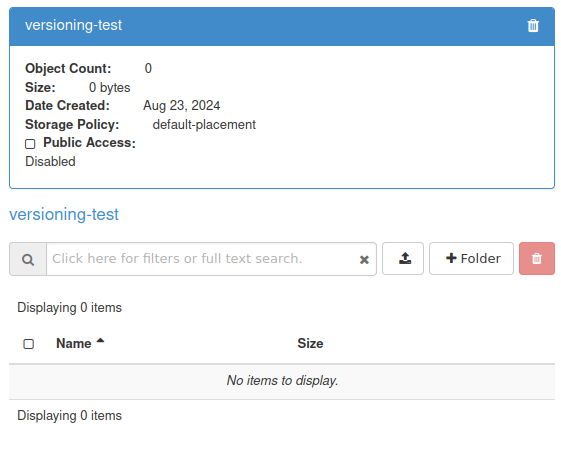
If you now execute list-object-versions:
aws s3api list-object-versions \
  --endpoint-url "$S3_ENDPOINT" \
  --bucket "$bucket_name1"
you should see that there are no file versions left:
{
    "RequestCharged": null
}
Using lifecycle policy to configure automatic deletion of previous versions
A noncurrent version is any version of a file that is not the latest version. In this section, you will configure automatic deletion of noncurrent versions after a specified number of days.
For this purpose, you will use a lifecycle policy.
This example configures automatic removal of noncurrent versions one day after a newer version of the same file has been uploaded.
Preparing the testing environment
Use $bucket_name1 for this test. If you deleted all versions in the previous section, upload fresh test files to the bucket.
Make sure that versioning is enabled:
aws s3api put-bucket-versioning \
  --endpoint-url "$S3_ENDPOINT" \
  --bucket "$bucket_name1" \
  --versioning-configuration MFADelete=Disabled,Status=Enabled
Create two local files:
mycode.py
announcement.md
The actual content of these files is not important for this example.
Upload these files to $bucket_name1:
aws s3api put-object \
  --endpoint-url "$S3_ENDPOINT" \
  --bucket "$bucket_name1" \
  --body mycode.py \
  --key mycode.py

aws s3api put-object \
  --endpoint-url "$S3_ENDPOINT" \
  --bucket "$bucket_name1" \
  --body announcement.md \
  --key announcement.md
To see these files after upload, run:
aws s3api list-object-versions \
  --endpoint-url "$S3_ENDPOINT" \
  --bucket "$bucket_name1"
Example output:
{
    "Versions": [
        {
            "ETag": "\"d185982da39fb33854a5b49c8e416e07\"",
            "Size": 34,
            "StorageClass": "STANDARD",
            "Key": "announcement.md",
            "VersionId": "r714CQ6MLAo4l300Fv9iBCqfNpESPpN",
            "IsLatest": true,
            "LastModified": "2024-10-04T14:51:26.015Z",
            "Owner": {
                "DisplayName": "this-project",
                "ID": "1234567890abcdefghijklmnopqrstuv"
            }
        },
        {
            "ETag": "\"6cf02e36dd1dc8b58ea77ba4a94291f2\"",
            "Size": 21,
            "StorageClass": "STANDARD",
            "Key": "mycode.py",
            "VersionId": ".qBE6Dx91dxnU7aYOzmBMM1qRg3QwAx",
            "IsLatest": true,
            "LastModified": "2024-10-04T14:51:41.115Z",
            "Owner": {
                "DisplayName": "this-project",
                "ID": "1234567890abcdefghijklmnopqrstuv"
            }
        }
    ],
    "RequestCharged": null
}
To test automatic deletion of previous versions, modify mycode.py locally and upload it again:
aws s3api put-object \
  --endpoint-url "$S3_ENDPOINT" \
  --bucket "$bucket_name1" \
  --body mycode.py \
  --key mycode.py
Run list-object-versions again:
aws s3api list-object-versions \
  --endpoint-url "$S3_ENDPOINT" \
  --bucket "$bucket_name1"
The output confirms that mycode.py has two versions while announcement.md has one version:
{
    "Versions": [
        {
            "ETag": "\"d185982da39fb33854a5b49c8e416e07\"",
            "Size": 34,
            "StorageClass": "STANDARD",
            "Key": "announcement.md",
            "VersionId": "r714CQ6MLAo4l300Fv9iBCqfNpESPpN",
            "IsLatest": true,
            "LastModified": "2024-10-04T14:51:26.015Z",
            "Owner": {
                "DisplayName": "this-project",
                "ID": "1234567890abcdefghijklmnopqrstuv"
            }
        },
        {
            "ETag": "\"3a474b21ab418d007ad677262dfed5b6\"",
            "Size": 39,
            "StorageClass": "STANDARD",
            "Key": "mycode.py",
            "VersionId": "tYJ6IazGryIWjv4iwSM1mLTW4-AnhMN",
            "IsLatest": true,
            "LastModified": "2024-10-04T14:55:07.223Z",
            "Owner": {
                "DisplayName": "this-project",
                "ID": "1234567890abcdefghijklmnopqrstuv"
            }
        },
        {
            "ETag": "\"6cf02e36dd1dc8b58ea77ba4a94291f2\"",
            "Size": 21,
            "StorageClass": "STANDARD",
            "Key": "mycode.py",
            "VersionId": ".qBE6Dx91dxnU7aYOzmBMM1qRg3QwAx",
            "IsLatest": false,
            "LastModified": "2024-10-04T14:51:41.115Z",
            "Owner": {
                "DisplayName": "this-project",
                "ID": "1234567890abcdefghijklmnopqrstuv"
            }
        }
    ],
    "RequestCharged": null
}
The first version of mycode.py has false under IsLatest, which means that it is no longer the latest version.
Setting up automatic removal of previous versions
The lifecycle policy is written in JSON.
Create file noncurrent-policy.json in your current working directory and enter the following content:
{
   "Rules": [
      {
         "ID": "NoncurrentVersionExpiration",
         "Filter": {
            "Prefix": ""
         },
         "Status": "Enabled",
         "NoncurrentVersionExpiration": {
            "NoncurrentDays": 1
         }
      }
   ]
}
Replace 1 with the number of days after which noncurrent versions are to be deleted.
Apply this policy to $bucket_name1:
aws s3api put-bucket-lifecycle-configuration \
  --endpoint-url "$S3_ENDPOINT" \
  --bucket "$bucket_name1" \
  --lifecycle-configuration file://noncurrent-policy.json
The output should be empty.
To verify that the policy was applied, run:
aws s3api get-bucket-lifecycle-configuration \
  --endpoint-url "$S3_ENDPOINT" \
  --bucket "$bucket_name1"
The output should show the policy:
{
    "Rules": [
        {
            "ID": "NoncurrentVersionExpiration",
            "Filter": {
                "Prefix": ""
            },
            "Status": "Enabled",
            "NoncurrentVersionExpiration": {
                "NoncurrentDays": 1
            }
        }
    ]
}
Versions of files that are not the latest should now be removed after one day.
After the configured period, run:
aws s3api list-object-versions \
  --endpoint-url "$S3_ENDPOINT" \
  --bucket "$bucket_name1"
The noncurrent version of mycode.py should no longer be listed.
Deleting lifecycle policy
To delete the bucket lifecycle policy, use delete-bucket-lifecycle:
aws s3api delete-bucket-lifecycle \
  --endpoint-url "$S3_ENDPOINT" \
  --bucket "$bucket_name1"
The output of this command should be empty.
To verify the current lifecycle configuration, run:
aws s3api get-bucket-lifecycle-configuration \
  --endpoint-url "$S3_ENDPOINT" \
  --bucket "$bucket_name1"
The command should return either empty output or a message indicating that no lifecycle configuration exists.
Suspending versioning
If you no longer want to store multiple versions of files, you can suspend versioning.
Bucket on which versioning has never been enabled
To understand suspended versioning, start with a bucket on which versioning has never been enabled.
On such a bucket, every file has only one version and that version has null as its VersionId.
If you upload another file under the same name, its VersionId is also null, and it replaces the previously uploaded file.
Example
Use $bucket_name2 for this example. It should be a bucket on which versioning has never been enabled.
If needed and if your bucket quota allows it, create it:
aws s3api create-bucket \
  --endpoint-url "$S3_ENDPOINT" \
  --bucket "$bucket_name2"
For this example, suppose that the bucket contains the following three files:
File |
Editor |
|---|---|
document.odt |
LibreOffice |
screenshot1.png |
GIMP, Krita, or similar |
script.sh |
nano, vim, or similar |
The actual content of these files is not important. Upload them with put-object:
aws s3api put-object \
  --endpoint-url "$S3_ENDPOINT" \
  --bucket "$bucket_name2" \
  --body document.odt \
  --key document.odt

aws s3api put-object \
  --endpoint-url "$S3_ENDPOINT" \
  --bucket "$bucket_name2" \
  --body screenshot1.png \
  --key screenshot1.png

aws s3api put-object \
  --endpoint-url "$S3_ENDPOINT" \
  --bucket "$bucket_name2" \
  --body script.sh \
  --key script.sh
List object versions on this bucket:
aws s3api list-object-versions \
  --endpoint-url "$S3_ENDPOINT" \
  --bucket "$bucket_name2"
Example output:
{
    "Versions": [
        {
            "ETag": "\"5064a9c6200fd7dae7c25f2ed01a6f8f\"",
            "Size": 9639,
            "StorageClass": "STANDARD",
            "Key": "document.odt",
            "VersionId": "null",
            "IsLatest": true,
            "LastModified": "2024-09-16T11:19:02.425Z",
            "Owner": {
                "DisplayName": "this-project",
                "ID": "1234567890abcdefghijklmnopqrstuv"
            }
        },
        {
            "ETag": "\"e3fedcd58235e90e7a676a84cd6c7ee6\"",
            "Size": 174203,
            "StorageClass": "STANDARD",
            "Key": "screenshot1.png",
            "VersionId": "null",
            "IsLatest": true,
            "LastModified": "2024-09-16T11:17:17.085Z",
            "Owner": {
                "DisplayName": "this-project",
                "ID": "1234567890abcdefghijklmnopqrstuv"
            }
        },
        {
            "ETag": "\"5600fdc5aa752cba9895d985a9cf709e\"",
            "Size": 36,
            "StorageClass": "STANDARD",
            "Key": "script.sh",
            "VersionId": "null",
            "IsLatest": true,
            "LastModified": "2024-09-16T11:17:47.206Z",
            "Owner": {
                "DisplayName": "this-project",
                "ID": "1234567890abcdefghijklmnopqrstuv"
            }
        }
    ],
    "RequestCharged": null
}
All of these files have only one version, and that version has null as its ID.
Now modify script.sh locally and upload it again under the same key:
aws s3api put-object \
  --endpoint-url "$S3_ENDPOINT" \
  --bucket "$bucket_name2" \
  --body script.sh \
  --key script.sh
For confirmation, you should get output containing ETag:
{
    "ETag": "\"b6b82cb2376934bcf6877705bae6ac58\""
}
If you list object versions again:
aws s3api list-object-versions \
  --endpoint-url "$S3_ENDPOINT" \
  --bucket "$bucket_name2"
you should get output similar to this:
{
    "Versions": [
        {
            "ETag": "\"5064a9c6200fd7dae7c25f2ed01a6f8f\"",
            "Size": 9639,
            "StorageClass": "STANDARD",
            "Key": "document.odt",
            "VersionId": "null",
            "IsLatest": true,
            "LastModified": "2024-09-16T11:19:02.425Z",
            "Owner": {
                "DisplayName": "this-project",
                "ID": "1234567890abcdefghijklmnopqrstuv"
            }
        },
        {
            "ETag": "\"e3fedcd58235e90e7a676a84cd6c7ee6\"",
            "Size": 174203,
            "StorageClass": "STANDARD",
            "Key": "screenshot1.png",
            "VersionId": "null",
            "IsLatest": true,
            "LastModified": "2024-09-16T11:17:17.085Z",
            "Owner": {
                "DisplayName": "this-project",
                "ID": "1234567890abcdefghijklmnopqrstuv"
            }
        },
        {
            "ETag": "\"b6b82cb2376934bcf6877705bae6ac58\"",
            "Size": 60,
            "StorageClass": "STANDARD",
            "Key": "script.sh",
            "VersionId": "null",
            "IsLatest": true,
            "LastModified": "2024-10-02T10:16:11.589Z",
            "Owner": {
                "DisplayName": "this-project",
                "ID": "1234567890abcdefghijklmnopqrstuv"
            }
        }
    ],
    "RequestCharged": null
}
There are still three files, each with exactly one version. The file script.sh was overwritten during upload. Its Size, ETag, and LastModified values changed.
Suspending versioning on a version-enabled bucket
When you suspend versioning, the bucket starts behaving similarly to a bucket on which versioning has never been enabled. Files uploaded from that moment on have null as their VersionId.
If you upload a file to the same key as a previously existing file, what happens next depends on whether the bucket already contains a version of that file with VersionId equal to null:
If a null version does not exist, the uploaded file becomes a new version of that object.
If a null version already exists, the uploaded file overwrites the previous null version.
Suspending versioning does not remove previously saved versions that have non-null VersionId values. You can delete them manually if you want to.
To illustrate this, you can use $bucket_name1, which already has versioning enabled. Suspend versioning on it:
aws s3api put-bucket-versioning \
  --endpoint-url "$S3_ENDPOINT" \
  --bucket "$bucket_name1" \
  --versioning-configuration MFADelete=Disabled,Status=Suspended
The output of this command should be empty.
List object versions again:
aws s3api list-object-versions \
  --endpoint-url "$S3_ENDPOINT" \
  --bucket "$bucket_name1"
The output shows that previous versions have not been removed.
Now modify a previously uploaded file, for example file1.txt, and upload it again:
aws s3api put-object \
  --endpoint-url "$S3_ENDPOINT" \
  --bucket "$bucket_name1" \
  --body file1.txt \
  --key file1.txt
After successful upload, list all versions again:
aws s3api list-object-versions \
  --endpoint-url "$S3_ENDPOINT" \
  --bucket "$bucket_name1"
The output should show that a new version of file1.txt with VersionId set to null was uploaded.
From now on, each uploaded file is uploaded with VersionId equal to null. If this null version of the file already exists, it is replaced.
What to do next
AWS CLI is not the only way to interact with object storage. Other options include Horizon dashboard, s3fs, Rclone, and s3cmd.