How to mount object storage container as a file system in Linux using s3fs on cloud environment
The following article covers mounting object storage containers using s3fs on Linux. One possible use case is easy access to the contents of such containers from different computers and virtual machines.
You can use your local Linux computer or a virtual machine running on cloud environment cloud. All operating system users can be given read, write, and execute privileges on the mounted contents.
What we are going to cover
Installing s3fs
Creating a file containing login credentials
Creating a mount point
Mounting the container using s3fs
Testing whether mounting was successful
Unmounting a container
Configuring automatic mounting
Stopping automatic mounting of a container
Potential problems with the way s3fs handles objects
Prerequisites
No. 1 Account
You need a cloud environment hosting account with access to the Horizon interface: https://horizon.cloudferro.com/auth/login/?next=/.
No. 2 Machine running Linux
You need a machine running Linux. It can be a virtual machine running on cloud environment cloud or your local Linux computer.
This article was written for Ubuntu 22.04. If you are running a different distribution, adjust the commands from this article accordingly.
No. 3 Object storage container
You need at least one object storage container on cloud environment cloud.
The following article shows how to create one: Deep dive into using s3cmd to access object storage.
As a concrete example, assume that the container is named my-files and that it contains two items. This is what it could look like in the Horizon dashboard:
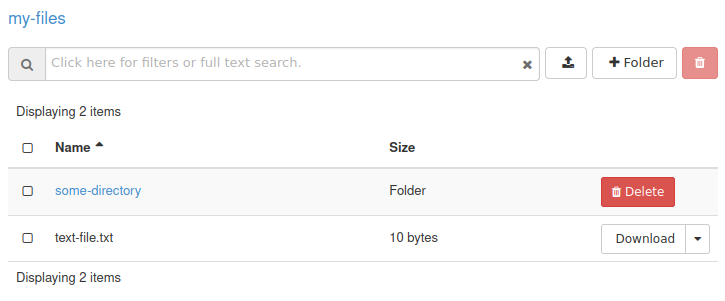
With the proper s3fs command from this article, you will be able to access that container remotely through a local file system.
No. 4 Generated S3 credentials
You need S3 credentials for your object storage containers.
No. 5 Knowledge of the Linux command line
Basic knowledge of the Linux command line is required.
Step 1: Sign in to your Linux machine
Sign in to an Ubuntu account that has sudo privileges. If you are using SSH to connect to a virtual machine running on cloud environment cloud, the username will likely be eouser.
Step 2: Install s3fs
First, check if s3fs is installed on your machine:
which s3fs
If s3fs is already installed, the output should contain its location. It may look like this:
/usr/local/bin/s3fs
If the output is empty, s3fs is probably not installed. Update your packages and install s3fs:
sudo apt update && sudo apt upgrade && sudo apt install s3fs
Step 3: Create file or files containing login credentials
In this article, we use plain text files for storing S3 credentials: access and secret keys. If you do not have the credentials yet, follow Prerequisite No. 4.
Each credentials file can store one access key and secret key pair. It can be used to mount all object storage containers to which that key pair provides access.
For each key pair you intend to use, create a text file. The content of the file is one line:
the access key,
followed by a colon,
followed by the secret key.
If the access key is 1234abcd and the secret key is 4321dcba, the file should contain:
1234abcd:4321dcba
Change permissions of each file containing a key pair to 600. If such a file is called .passwd-s3fs and is stored in your home directory, run:
chmod 600 ~/.passwd-s3fs
Step 4: Create mount points
The files inside your object storage container should appear inside a folder of your choice. Such a folder is called a mount point in this article.
You can use an empty folder from your file system for that purpose. You can also create a new folder to use as the mount point.
To keep things tidy, this example uses the standard Linux folder /mnt. For each container, use mkdir to create a subfolder of /mnt:
sudo mkdir /mnt/mount-point
Step 5: Mount a container
Here is a typical command to mount a container.
sudo s3fs my-files /mnt/mount-point \
  -o passwd_file=~/.passwd-s3fs \
  -o url=https://s3.r1.cloud.eumetsat.int \
  -o endpoint="RegionOne" \
  -o use_path_request_style \
  -o umask=0000 \
  -o allow_other
sudo s3fs my-files /mnt/mount-point \
  -o passwd_file=~/.passwd-s3fs \
  -o url=https://s3.r2.cloud.eumetsat.int \
  -o endpoint="RegionOne" \
  -o use_path_request_style \
  -o umask=0000 \
  -o allow_other
sudo s3fs my-files /mnt/mount-point \
  -o passwd_file=~/.passwd-s3fs \
  -o url=https://s3.fra1-3.cloudferro.com \
  -o endpoint="RegionOne" \
  -o use_path_request_style \
  -o umask=0000 \
  -o allow_other
You need to change some of the parameters, but not all of them.
Edit the following values:
my-files – the name of the object storage container.
/mnt/mount-point – the Linux directory that will be used as the mount point.
-o passwd_file – the location of the file with the key pair used for mounting that container.
Do not edit the following parameters unless you have a specific reason to do so:
-o url – the endpoint URL address for the selected region.
-o endpoint – the S3 region value.
-o use_path_request_style – fixes issues with certain characters, such as dots, in bucket names.
-o umask – permissions for accessing the mounted container. In this example, users receive read, write, and execute permissions.
-o allow_other – allows all users on the system to access the mounted container.
Once you have executed the command, navigate to the directory in which you mounted the object storage container. If you used /mnt/mount-point, run:
cd /mnt/mount-point
List the contents of the container. Be ready to wait a few seconds for the operation to complete:
ls
You should see files from your object storage container.
Suppose you mounted an object storage container under /mnt/mount-point, and the container contains:
a directory-like prefix called some-directory,
a file named text-file.txt.
This is what executing ls from the mount point could produce:

To mount multiple containers, repeat the s3fs command with the relevant parameters as many times as needed.
Unmounting a container
To unmount a container, first make sure that the content of your object storage is not in use by any application on your system, including terminals and file managers.
After that, execute the following command. Replace /mnt/mount-point with the mount point of your object storage container:
sudo umount -lf /mnt/mount-point
Configuring automatic mounting of your object storage
You can configure automatic mounting of your object storage containers after system startup.
First, check where s3fs is installed:
which s3fs
The output should contain the full path to the s3fs binary on your system. On Ubuntu virtual machines created using default images on cloud environment cloud, it may be:
/usr/local/bin/s3fs
Save this path, because you will need it later.
Open the file /etc/fstab for editing. You need sudo permissions for that. For example, to use nano, run:
sudo nano /etc/fstab
Append the following line to it.
/usr/local/bin/s3fs#my-files /mnt/mount-point fuse passwd_file=/home/eouser/.passwd-s3fs,_netdev,allow_other,use_path_request_style,uid=0,umask=0000,mp_umask=0000,gid=0,url=https://s3.r1.cloud.eumetsat.int,endpoint=RegionOne 0 0
/usr/local/bin/s3fs#my-files /mnt/mount-point fuse passwd_file=/home/eouser/.passwd-s3fs,_netdev,allow_other,use_path_request_style,uid=0,umask=0000,mp_umask=0000,gid=0,url=https://s3.r2.cloud.eumetsat.int,endpoint=RegionOne 0 0
/usr/local/bin/s3fs#my-files /mnt/mount-point fuse passwd_file=/home/eouser/.passwd-s3fs,_netdev,allow_other,use_path_request_style,uid=0,umask=0000,mp_umask=0000,gid=0,url=https://s3.fra1-3.cloudferro.com,endpoint=RegionOne 0 0
Replace the parameters from that line as follows:
/usr/local/bin/s3fs – with the full location of the s3fs binary obtained previously.
my-files – with the name of your object storage container.
/mnt/mount-point – with the full path to the directory chosen as the mount point.
/home/eouser/.passwd-s3fs – with the full path to the file containing the key pair created in Step 3.
Append such a line for every container you want to have automatically mounted.
Reboot your VM and check whether the mounting was successful by navigating to each mount point and making sure that the files from those object storage containers are there.
Stopping automatic mounting of a container
If you no longer want your containers to be automatically mounted, first make sure that each of them is not in use by any application on your system, including terminals and file managers.
After that, unmount each container that you want to stop from automatic mounting. Replace /mnt/mount-point with the mount point of your first container and repeat the command for every other such container, if applicable:
sudo umount /mnt/mount-point
Finally, modify the /etc/fstab file.
Open that file in your preferred text editor with sudo. For example, to use nano, run:
sudo nano /etc/fstab
Remove the lines responsible for automatic mounting of containers you no longer want to be automatically mounted. If you followed this article, these lines were added in the automatic mounting step.
Save the file and exit the text editor.
You can now reboot your virtual machine to check whether the containers are no longer mounted automatically.
Potential problems with the way s3fs handles objects
s3fs attempts to translate object storage into a file system and most of the time this works as expected. However, some object storage structures cannot be represented cleanly as a normal file system.
One potential problem comes from the fact that object storage allows a folder and a file to share the same apparent name in the same location, which is not possible in a normal operating system file system.
Here is a situation from the Horizon dashboard:
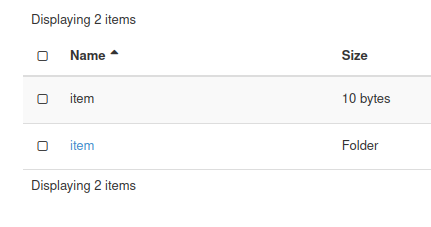
The first row contains an object named item, with size of 10 bytes. The second row contains an object called item/, displayed in Horizon as a folder. Both the file and the folder are represented in Horizon as if they were regular file system objects, although they are S3 objects.
In S3 terminology, the former is an object whose name ends with item, while the latter is an object whose name ends with item/. Since their names are different, they can coexist in object storage based on the S3 standard.
When the same location is accessed by s3fs, the ls command may return only the folder:

To prevent this issue, use consistent file naming and directory-like prefix conventions when working with object storage.
Another potential problem is that some changes to object storage might not be immediately visible in the file system created by s3fs. Wait a short time and check again.
What to do next
You can also access object storage from cloud environment without mounting it as a file system.
Check the following articles for more information: