How to mount object storage container from cloud environment as file system on local Windows computer
This article describes how to configure direct access to object storage containers from cloud environment cloud in the This PC window on your local Windows computer. Such containers will be mounted as network drives, for example:

You will configure mounting using an account that can be elevated to administrative privileges through User Account Control (UAC). After this process, the mounted container should also be available to accounts that do not have such administrative privileges.
Prerequisites
No. 1 Account
You need a cloud environment hosting account with access to the Horizon interface: https://horizon.cloudferro.com/auth/login/?next=/.
No. 2 Object storage container
You need at least one object storage container on the cloud environment cloud.
If you do not have one yet, follow this article: Deep dive into using s3cmd to access object storage
No. 3 Generated S3 credentials
You need S3 credentials for your account.
If you want to generate credentials from Windows by using OpenStack CLI, you need to install the OpenStack CLI client first.
Once you have installed OpenStack CLI on Windows, use it to perform the credentials workflow from the S3 credentials article. Adjust the commands for your Windows environment where needed.
No. 4 A local computer running Microsoft Windows
You need a local computer running Microsoft Windows. This article was written for Windows 10 Pro.
You need access to an account that can be elevated to administrative privileges through UAC. Such an account is usually created during a standard installation of Microsoft Windows.
Other accounts, including accounts named Administrator on Windows Server, are outside the scope of this article.
What we are going to cover
Mounting an object storage container as a Windows drive using open source software
Testing the connection to the container
Tweaking the –dir-cache-time option
Setting automatic mounting for a container
Removing software used for mounting
Software tools used in this article
This article uses Rclone, WinFsp, and NSSM.
Rclone can manage files in cloud storage and sync between file systems. In this article, you will use its rclone mount command to mount object storage on your Windows computer.
WinFsp enables access to custom file systems on Microsoft Windows. In this workflow, it allows Rclone to mount S3 storage.
NSSM is a service manager. Here, it is used to configure automatic mounting of object storage. You will run it from the command line.
How to use the Rclone configuration file
By default, Rclone creates and uses a configuration file in the \.config\rclone folder in the home directory of the current user.
To streamline the configuration process, you will instead manually create a configuration file called rclone.conf in the folder where the Rclone binary is stored. Each time Rclone is executed, the location of that file will be passed to it as a parameter.
Warning
All users of your computer may be able to access and modify the configuration file. It contains access credentials written as plain text.
Step 1: Download and install the required software
Note
Skip this step if these software tools are already configured.
Download and extract Rclone
Start PowerShell normally, not as Administrator.
Use the following commands to create the directory in which Rclone will be stored and navigate to it:
mkdir C:\rclone
cd C:\rclone
Without closing PowerShell, open a web browser on your computer. Navigate to the Rclone downloads page:
The page contains a table with links to different versions:

Download the version of Rclone for the Intel/AMD - 64 Bit platform for Windows.
Download the zip archive. In Microsoft Edge, it should look like this:

Enter the zip archive. It should contain one directory. Double-click to enter it. Its content should look like this:

Copy the content of that directory to the C:\rclone folder that you created previously using PowerShell.
Download and install WinFsp
Return to the browser and navigate to:
Click Download WinFsp Installer:

Run the downloaded installer. The installation process is similar to installing other Windows programs. The Custom Setup step requires you to make a choice:

Leave the default values intact to install only the Core section and click Next. Complete the installation.
Download and extract NSSM
Navigate to:
Click the link in the Latest release section:

A zip file should be downloaded. It should contain one folder. The content of that folder should look like this:

Navigate to the win64 folder. It should contain one executable file called nssm:

Copy that file to C:\rclone.
Step 2: Enter the connection data
Open the C:\rclone folder using Windows File Explorer.
The rclone.conf file in that folder will store connection data for object storage. If the file does not exist, create it. Open it using Notepad.
Each section containing object storage connection data starts with a line containing its name in square brackets. Below it, there are lines containing different parameters used to connect to object storage.
A single section provides access to all object storage containers available to the same access key and secret key pair. This means that you do not need to create separate sections for different containers that use the same credentials.
Add the following section to the end of the file.
[remote-config]
type = s3
provider = Other
access_key_id = 1234
secret_access_key = 4321
endpoint = s3.r1.cloud.eumetsat.int
[remote-config]
type = s3
provider = Other
access_key_id = 1234
secret_access_key = 4321
endpoint = s3.r2.cloud.eumetsat.int
[remote-config]
type = s3
provider = Other
access_key_id = 1234
secret_access_key = 4321
endpoint = s3.fra1-3.cloudferro.com
In the above block, replace 1234 and 4321 with the access key and secret key obtained in Prerequisite No. 3.
This code creates a connection called remote-config. If you want to use a different name for your connection, replace remote-config in the configuration block. This name does not have to be the same as the name of one of your containers.
If you want to access other object storage containers using different credentials on your computer, create a separate section with a different name for each key pair.
Step 3: Perform a test mount
In this step, you will perform a test mount to make sure that the configuration was successful and Rclone can mount your object storage container.
Return to the PowerShell window you opened in Step 1. If you closed it, open PowerShell again as a normal user, not as Administrator, and navigate to the C:\rclone directory.
Execute the command below. Replace remote-config with the name of the connection you configured.
.\rclone.exe --config "C:\rclone\rclone.conf" lsd remote-config:
You should see the list of object storage containers associated with your credentials. For example:
-1 2023-01-18 12:53:14        -1 second-test-container
-1 2023-01-16 13:23:03        -1 test-container
Repeat this process for each key pair you added in Step 2.
To test mounting one of your containers, execute the command below without leaving PowerShell. Replace:
remote-config with the name of your connection,
test-container with the name of your container,
E: with the drive letter under which you want to mount it.
.\rclone.exe mount --config "C:\rclone\rclone.conf" --network-mode remote-config:test-container E: --vfs-cache-mode full --dir-cache-time 1m0s
Note
If you enter the name of a non-existing object storage container by mistake, the command may attempt to create and mount it, subject to permissions, bucket quota, and other constraints.
The option –vfs-cache-mode full makes the mount support standard file system operations.
The option –dir-cache-time 1m0s is explained in the next step.
The option –network-mode is optional. It was added so that the mounted container is visually represented as a network drive in This PC. Removing it causes the container to be represented as a normal drive and may solve some mounting-related problems.
You should now get the following output:
The service rclone has been started.
Go to the This PC window. You should see the mounted container there:

Enter it. You should see its content:

To stop the test mount, press CTRL+C in PowerShell. You should get the following output:
The service rclone has been stopped.
The container should no longer be visible in the This PC window.
If pressing CTRL+C does not stop the test mount, make sure that the PowerShell window is focused by left-clicking it. Press a letter on your keyboard, for example A, and try pressing CTRL+C again.
You can perform such tests for all object storage containers you want to use on your computer.
Do not close PowerShell yet.
Step 4: Tweak the –dir-cache-time option
In Step 3, you performed a test mount of your object storage container using a command similar to this:
.\rclone.exe mount --network-mode remote-config:test-container E: --vfs-cache-mode full --dir-cache-time 1m0s
Tweaking the –dir-cache-time option is important especially if you intend to use your container on multiple physical or virtual machines. This includes using the container from your Windows computer and from the Horizon dashboard.
You may discover that changes made to the bucket from another computer do not appear immediately on your Windows computer. Using the Refresh option in Windows File Explorer might not synchronize that change either.
This happens because Refresh may read from the local cache instead of pulling changes directly from object storage. If –dir-cache-time is not specified during mounting, the cache is automatically synchronized every 5 minutes. Therefore, if you rename a folder from another device, it may take up to about 5 minutes to become visible.
Specifying –dir-cache-time overwrites the default value. In this example, the automatic cache refresh interval was set to 1 minute: 1m0s. You can also set it to a lower value, for example 1 second: 1s.
You can perform several test mounts as explained in Step 3 and choose the –dir-cache-time value that suits your workflow.
Step 5: Configure automatic mounting of your container
Open PowerShell as Administrator and navigate to the C:\rclone directory:
cd C:\rclone
Start the NSSM service installer:
.\nssm.exe install
You should get the following window:

Click the … button next to the Path: text field.
Choose the location of Rclone. If you followed this tutorial, this location is:
C:\rclone\rclone.exe
In the Arguments text field, enter the following code. Replace remote-config with the name of your connection, test-container with the name of your container, E: with the drive letter under which you want to mount it, and 1m0s with the value chosen in Step 4.
mount --config "C:\rclone\rclone.conf" --network-mode remote-config:test-container E: --vfs-cache-mode full --dir-cache-time 1m0s
Warning
Make sure that nothing is already mounted under the drive letter you choose.
In the Service name: text field, enter the name for your mounting service. It can be different from the name of your connection and from the name of your S3 container. In this example, the name mounting-service is used.
Navigate to the Log on tab. Make sure that Local System account is selected.
Click Install service. You should get the following message:

Restart your computer and check whether the drive is automatically mounted in the This PC window. If it is, the service works as intended.
You should now be able to work with your files.
Add a separate service with a different name for each object storage container you want to have automatically mounted on your computer. Save the service names so that you can stop and remove them later if needed.
If you cannot delete files or folders from the mounted object storage, you can remove them from Object Store -> Containers in the Horizon dashboard:

Removing software responsible for automatic mounting of object storage
If you no longer want to access object storage containers from cloud environment on a particular machine, you can remove the configuration and software.
The whole procedure is covered in this section:
removing automatic mounting created in NSSM,
removing saved object storage configuration in Rclone,
uninstalling WinFsp,
removing the C:\rclone folder containing Rclone and NSSM.
Open PowerShell as Administrator. Navigate to the C:\rclone directory:
cd C:\rclone
To check the status of your automatic mounting service, execute the following command. Replace mounting-service with the name of your automatic mounting service:
.\nssm.exe status mounting-service
You should get the following output:
SERVICE_RUNNING
To stop automatic mounting of your container, execute the command below. Replace mounting-service as previously:
.\nssm.exe stop mounting-service
Delete the service:
.\nssm.exe remove mounting-service confirm
You should get output similar to this:
Service "mounting-service" removed successfully.
If you have used this Rclone installation to mount other object storage containers from cloud environment, remove their services using NSSM in the same way.
Delete the C:\rclone folder you created.
Click the Start menu and type control panel.
You should see the following search result:

Click it to enter Control Panel.
Make sure that the View by drop-down menu is set to Category.
In the Programs section, select Uninstall a program.

In the list that appears, find the WinFsp entry:

Right-click it and choose Uninstall:

You will get the following question:

Click Yes. You should get the following window:

Close all open programs and File Explorer windows, for example This PC or Documents windows. Make sure that Automatically close applications and attempt to restart them after setup is complete. is selected and click OK.
You will be prompted to reboot your computer:
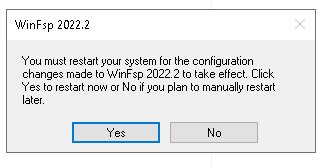
Make sure that it is safe to reboot, including that you have:
saved your work,
closed the programs.
After that, click Yes in the prompt shown above.
Your computer should now reboot.
Once you have logged in again, open This PC.
Enter your C: drive.
Remove the rclone folder. You may need administrative privileges for it.
Rclone and other software used for mounting object storage should now be removed.
What to do next
Object storage containers on the cloud environment cloud can be mounted both on physical and virtual machines running Windows and Linux.
To mount an object storage container on a different platform, follow one of the articles below:
How To Mount Object Storage Container as File System on Windows VM on cloud environment
How to mount object storage container as a file system in Linux using s3fs on cloud environment