How to install s3cmd on Linux on cloud environment
In this article, you will learn how to install s3cmd on Linux.
s3cmd is a command-line tool for working with S3-compatible object storage from a terminal. After installing it, you can use commands to list buckets, upload files, download files, synchronize directories, and automate storage tasks in scripts.
On cloud environment, you can use s3cmd when you want to work with object storage directly from the command line instead of mounting storage as a local file system.
You can also use s3cmd to access EODATA repositories. This is useful when you want to download Earth observation data directly from the terminal or include EODATA access in scripts.
What we are going to cover
Installing s3cmd using apt
Checking the installed version
Uninstalling s3cmd
Prerequisites
No. 1 Account
You need a cloud environment hosting account with access to the Horizon interface: https://horizon.cloudferro.com/auth/login/?next=/.
No. 2 A virtual machine or local computer
These instructions are written for Ubuntu 22.04, either on a local computer or on a virtual machine hosted on cloud environment cloud.
Other operating systems and environments are outside the scope of this article and may require adjusted commands.
If you want to install s3cmd on a virtual machine hosted on cloud environment cloud, follow one of these articles:
How to create a Linux VM and access it from Windows desktop on cloud environment
How to create a Linux VM and access it from Linux command line on cloud environment
Object storage from cloud environment is available both from a virtual machine hosted on cloud environment cloud and from a local Linux computer.
Installing s3cmd using apt
Update the packages on your system:
sudo apt update && sudo apt -y upgrade
Note
When executing sudo, you may be prompted for a password. If that happens, enter the local user account password and press Enter.
Install s3cmd:
sudo apt -y install s3cmd
After installation, s3cmd is available as a command in the terminal.
Check whether the installation was successful:
s3cmd --version
You should get the version of s3cmd installed on your computer. For example:
s3cmd version 2.2.0

Uninstalling s3cmd using apt
If you installed s3cmd using apt, remove it using the same package manager:
sudo apt -y remove s3cmd
To remove packages that were installed as dependencies of s3cmd, or other packages that were later removed and are no longer needed, run:
sudo apt autoremove
This may affect software not directly related to s3cmd. The command will show you which packages are to be removed before proceeding.
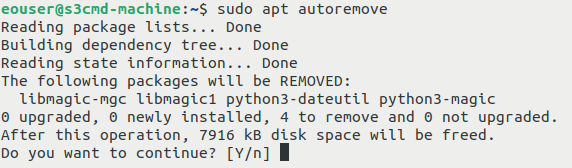
You should get the following question:
Do you want to continue? [Y/n]
If you want to remove these packages, answer with Y and press Enter.
If you do not want to remove them, answer with n and press Enter.
What to do next
To access object storage buckets from cloud environment cloud on a virtual machine hosted on cloud environment cloud or on a local Linux computer, follow this article:
How to access object storage from cloud environment using s3cmd