How to access a VM from Windows PuTTY
The link below shows how to generate and add rsa key pairs:
How to connect to a virtual machine via SSH from Windows 10 Command Prompt
In this tutorial key.pem is equivalent to the id_rsa file that we obtain in a zip package after the key generation process.
To connect via PuTTY, copy your Virtual Machine floating IP address and save it somewhere.
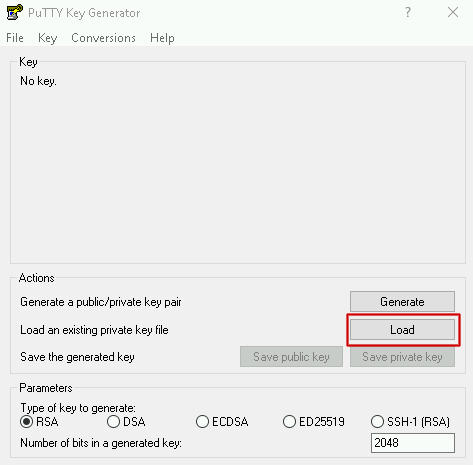
Open PuTTYGen to converse the private key file to ppk format. (This format is being ussed by the PuTTY client). Click on the “Load” button.
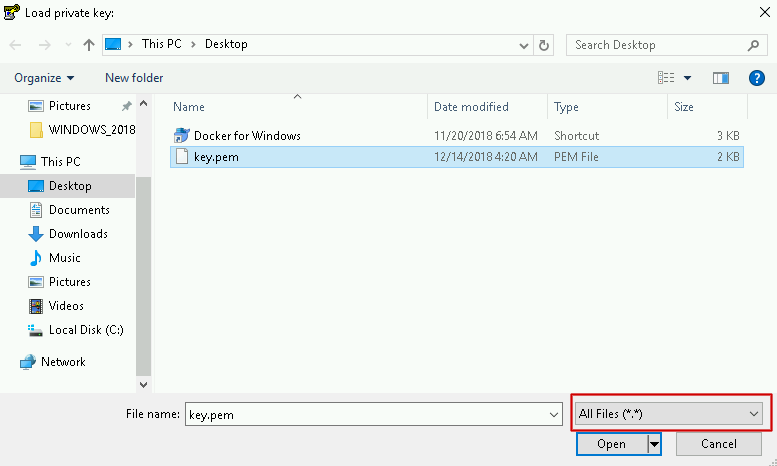
Choose the key file. Make sure that you have set the visibility to “All files”.
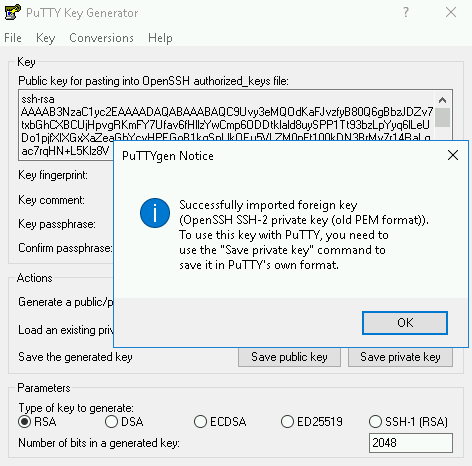
A prompt window informing you about succesful import will appear.
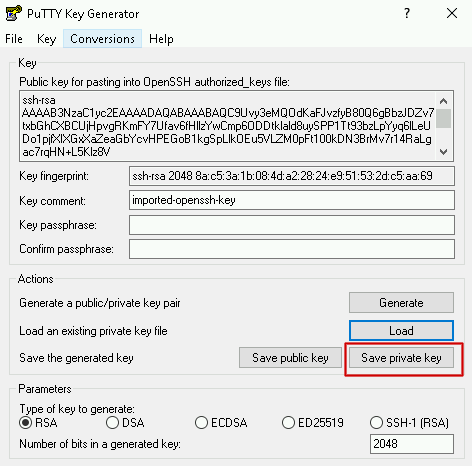
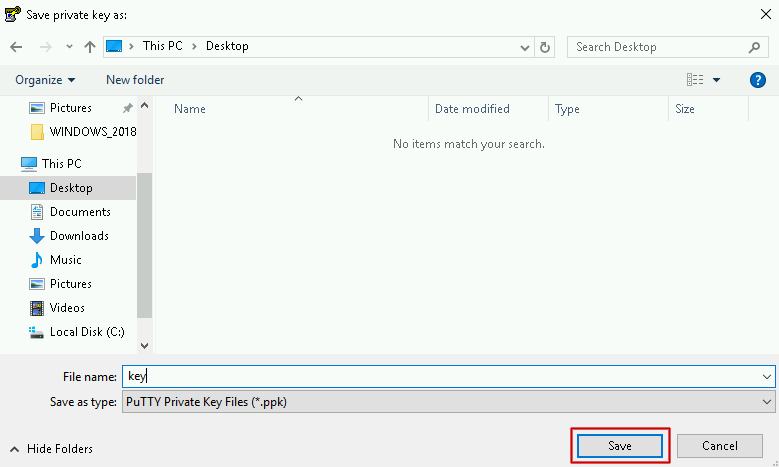
Save your imported private key in the ppk format.
Open PuTTY Configuration tool and focus on the marked labels:
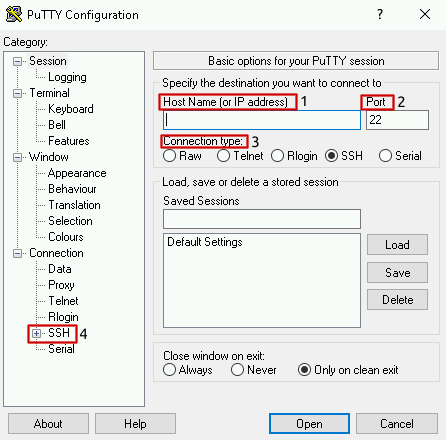
Description:
Host Name( or IP address) → Write down the floating IP address that you may find in the Horizon Panel
Port → Assign a SSH service port, by default it is set up on 22
Connection type → Check SSH
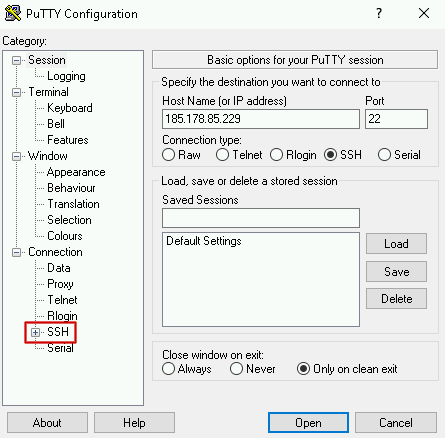
Configuration has been set up. Enroll the SSH branch.
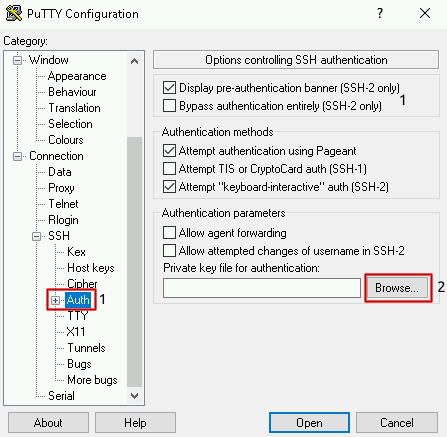
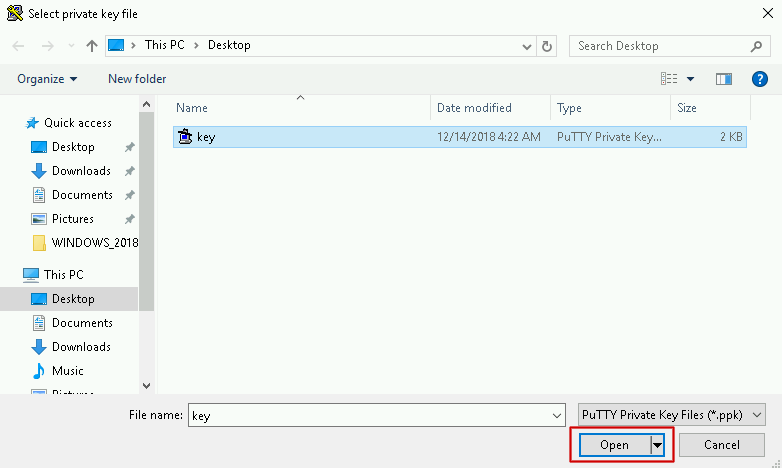
Enroll the Auth branch and provide a private key file by clicking “Browse”, selecting your key and clicking “Open”.
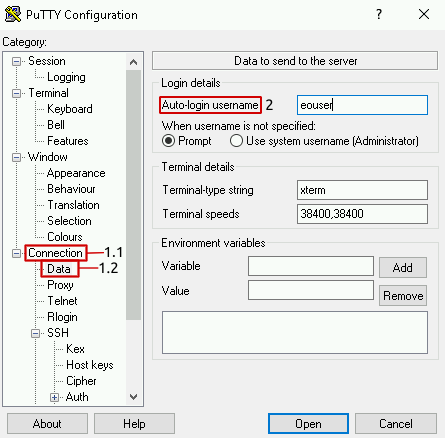
(Optionally) Expand the “Connection” list and click on the “Data”.
Set Auto-login username: eouser.
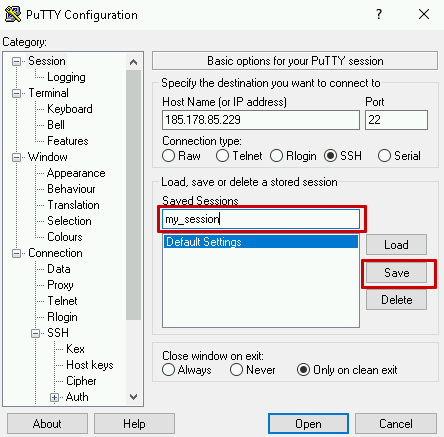
For your comfort you can save the session for future use by naming it and saving changes.
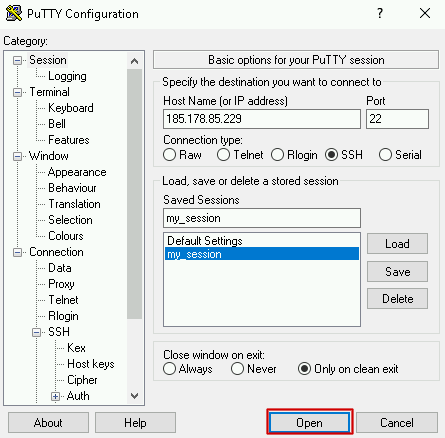
Choose the proper session and click on the “Open” button to commence the ssh session:
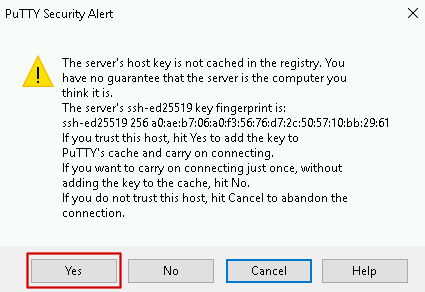
If you are connecting to your VM via PuTTY for the first time, we recommend that you save the rsa key fingerprint by choosing Yes (Tak) for future connections from your computer.
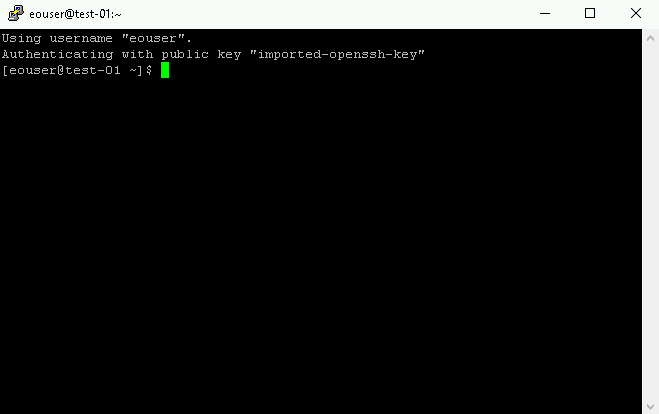
If you logged in correctly you should see the following at the bottom of the screen:
eouser@yourInstanceName:~$
You are now correctly logged into your VM via SSH from another host.
If you would like to learn more about PuTTYgen, its installation and usage, visit the website https://www.puttygen.com.